 English
  Chinese
  Japanese
  Hindi
Hindi  Spanish
  French
  Arabic
  Bengali
  Russian
  Portuguese
  Indonesian
  Korean
  German
 This article addresses solutions for AutoCAD 2014 encountering a “Fatal Error: Unhandled Access Violation” either immediately upon launching or during specific operations, and provides methods to resolve it without necessarily disabling integrated graphics.
Scenario 1: Fatal Error on Startup, Interface Does Not Appear
If AutoCAD crashes with a fatal error immediately upon launch and the user interface does not load, follow these steps:
Create a System Restore Point
It is highly recommended to create a system restore point before proceeding. This allows you to revert your system to a previous state if any issues, such as a black screen after a driver update, occur.
- In the Windows taskbar search box, type “create a restore point” and select it from the results list.
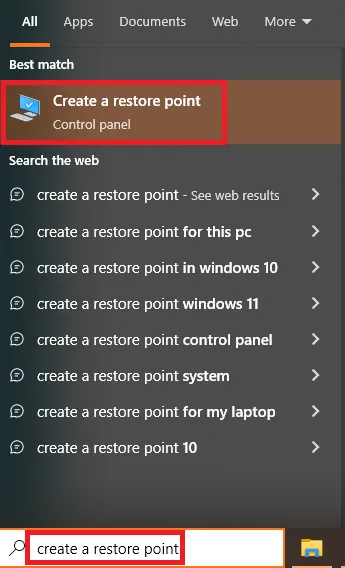
- In the System Properties dialog, navigate to the System Protection tab.
- Click the Create button.
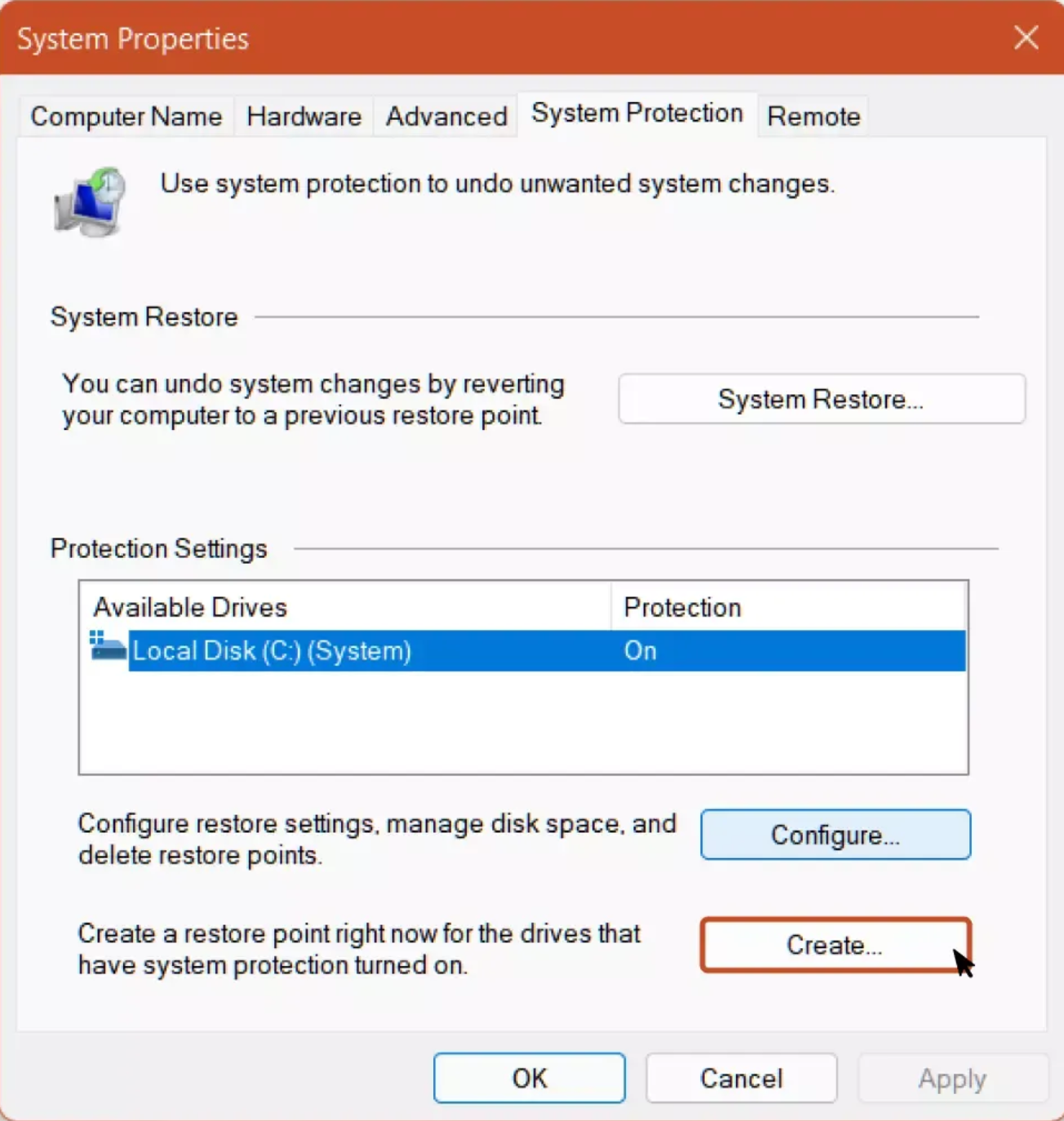
- Enter a description for the restore point (e.g., “Before AutoCAD driver update”), then click Create.
Install the Required Driver
- Download and install the following driver: gfx_win_101.4335.exe It might be other versions.
- After the installation is complete, restart your computer.
How to Restore System If a Black Screen Occurs
If your system experiences a black screen after updating drivers, follow these steps to restore:
- Restart the Computer: Use your computer’s restart button or long-press the power button to force a shutdown, then restart. Repeat this process several times until the System Repair options appear.
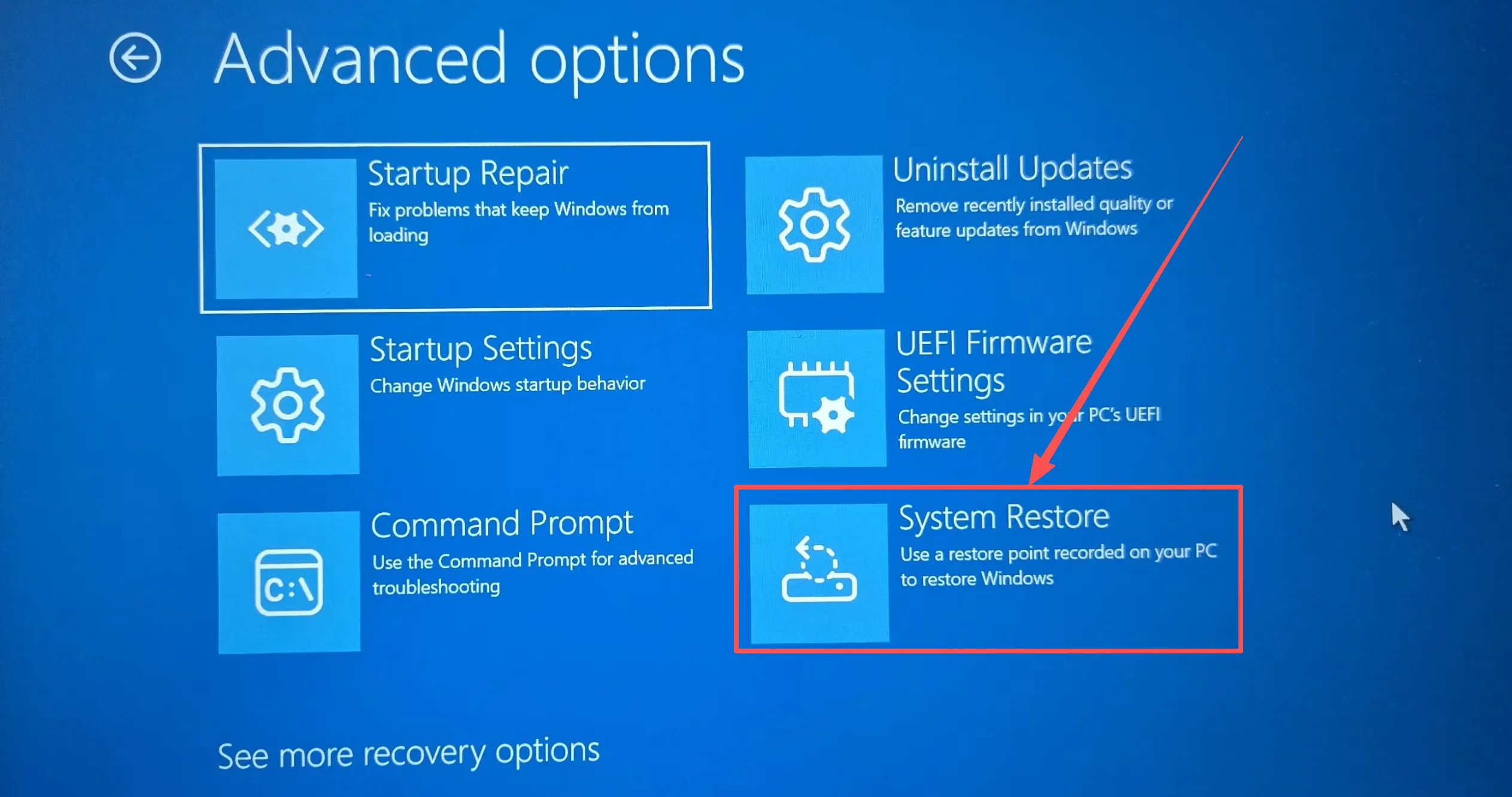
- Enter System Restore:
- Once the System Repair options interface appears, select Troubleshoot.
- From the Troubleshoot interface, select Advanced options > System Restore.
If the fatal error persists after performing a system restore, please contact customer service directly for remote assistance.
Scenario 2: Fatal Error When Clicking Specific Buttons
This scenario applies if AutoCAD can launch without a fatal error, but a fatal error occurs when clicking specific buttons or performing certain actions (e.g., Options, Draw Line, Save, Save As).
- Locate AutoCAD Installation Path:
- Right-click the AutoCAD icon and select Open file location.
- Click on the address bar in the File Explorer window to highlight the path, then copy it.
- Launch deepuninstaller Extension: Click the CAD fatal error (operation) button within the deepuninstaller extension.
- Paste Path: Paste the copied installation path into the address bar provided within the deepuninstaller tool.
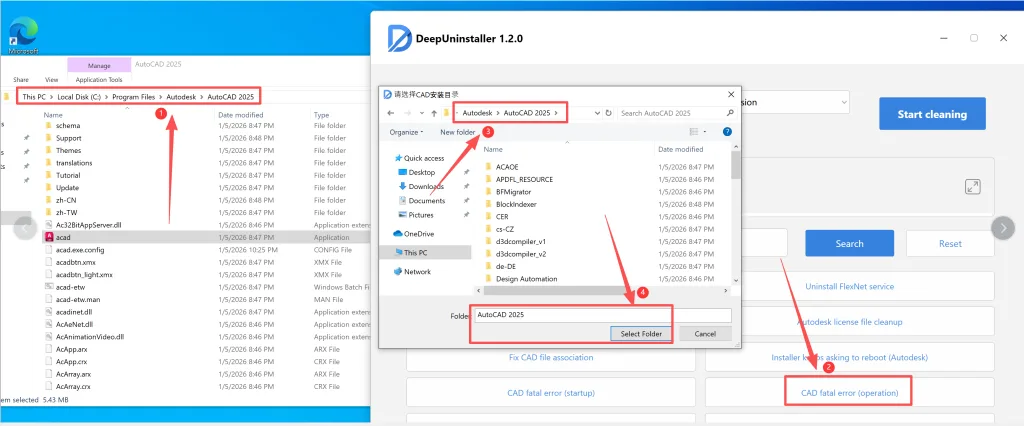
- Execute Repair:
- Press Enter after pasting the path to navigate to the directory.
- Click the bottom-most file (usually an executable or script related to repair), select it, and then click Open.
- Verify Repair: A prompt indicating “Repair complete” confirms the process was successful.
- Troubleshoot Freezing Interface: If the “Repair successful” prompt appears, but AutoCAD still opens to an interface that freezes, first perform a clean uninstall of AutoCAD using deepuninstaller, then reinstall AutoCAD.
- Repair Folder Permissions: If the issue persists, it may be related to folder permissions.
- Copy the AutoCAD installation directory path again.
- Click the “Fix specific folder permissions” button within the deepuninstaller extension.

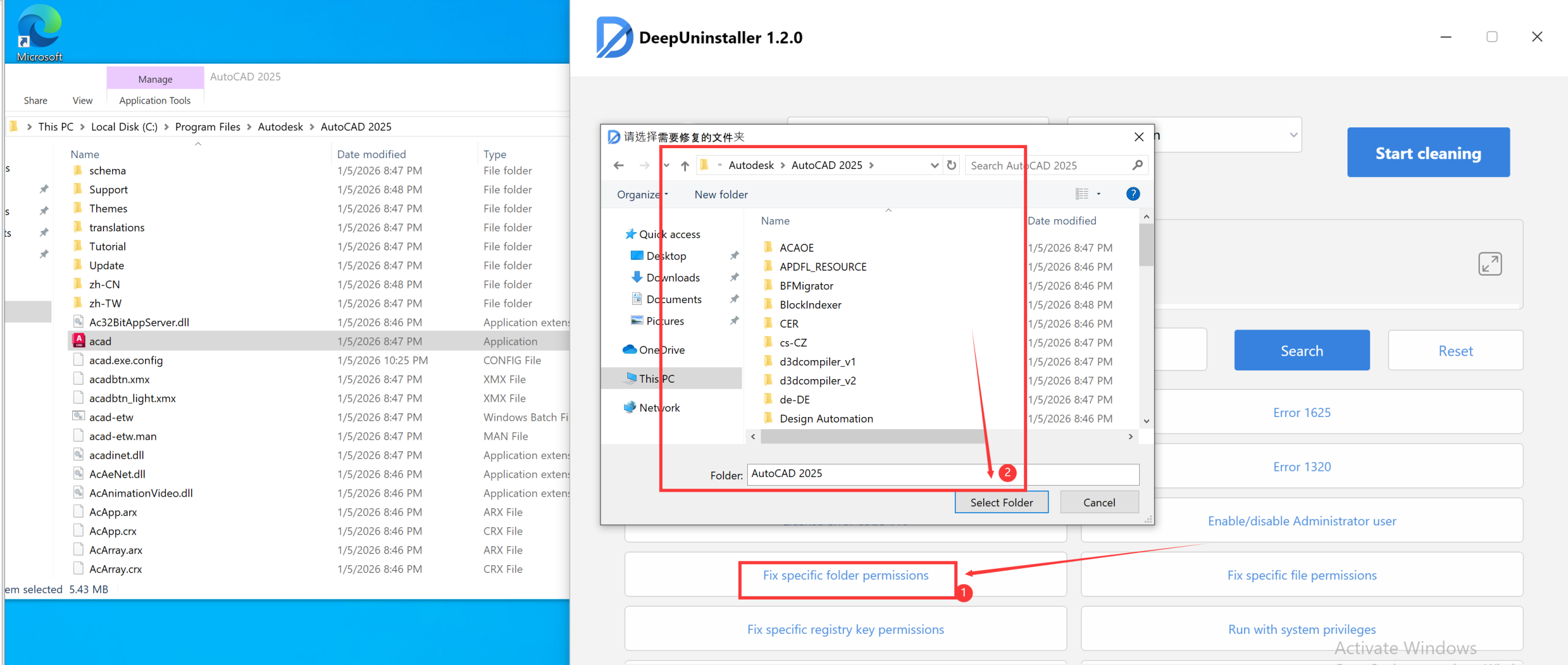
- Select Installation Directory:
- Navigate to and select your AutoCAD installation directory (it should show a structure similar to the example in the image). Click “Select Folder”.
- After repairing permissions, re-click the “CAD Fatal Error (During Operation)” button in the deepuninstaller extension and follow steps 3-5 again.
Leave a Reply