 English
  Chinese
  Japanese
  Hindi
Hindi  Spanish
  French
  Arabic
  Bengali
  Russian
  Portuguese
  Indonesian
  Korean
  German
 Issue:
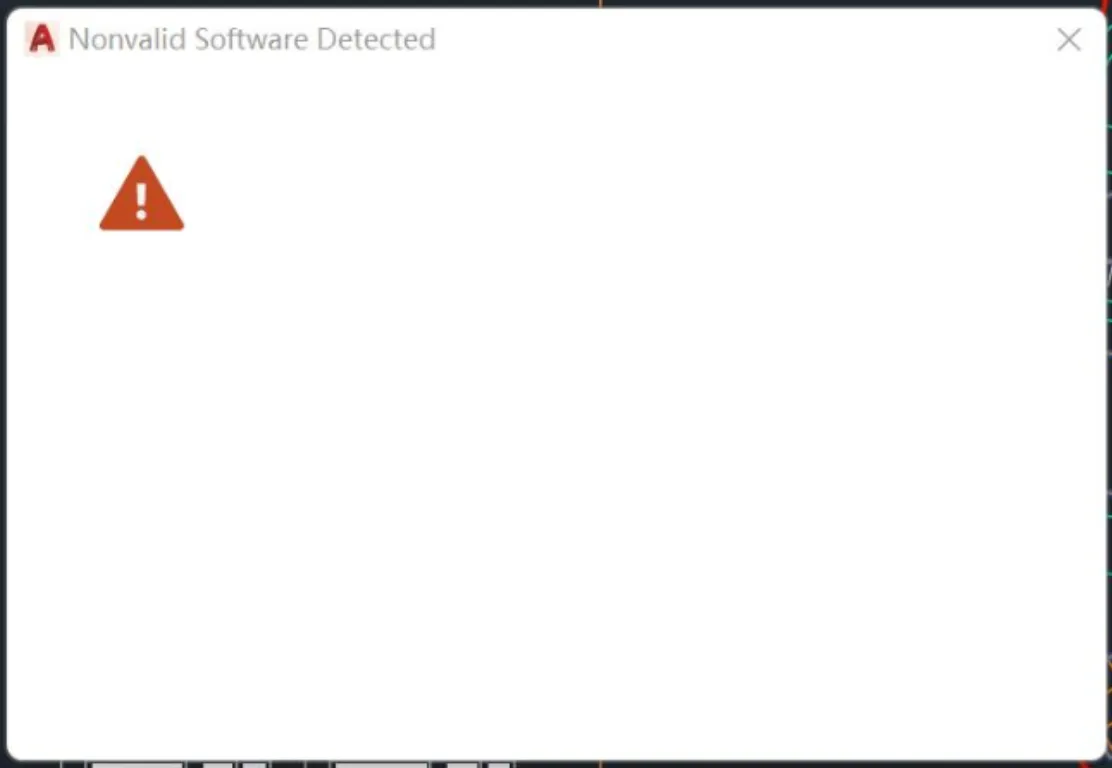
Users continuously encounter pop-up messages in AutoCAD indicating invalid software or license issues. These messages may include:
- “Non-valid software detected”
- A pop-up referencing https://genuine-software2.autodesk.com
- “Your AutoCAD license is not valid”
Solution
To resolve the invalid license pop-ups, follow these steps:
Part 1: Locate and Copy AutoCAD Installation Path
- Right-click the AutoCAD desktop icon (or the AutoCAD executable in the Start Menu) that is displaying the pop-up, then select Open file location.Image Placeholder: Illustrates right-clicking AutoCAD icon
- In the File Explorer window that opens, copy the full path to the AutoCAD installation directory from the address bar. For example:
C:\Program Files\Autodesk\AutoCAD 202X\Image Placeholder: Shows File Explorer with path highlighted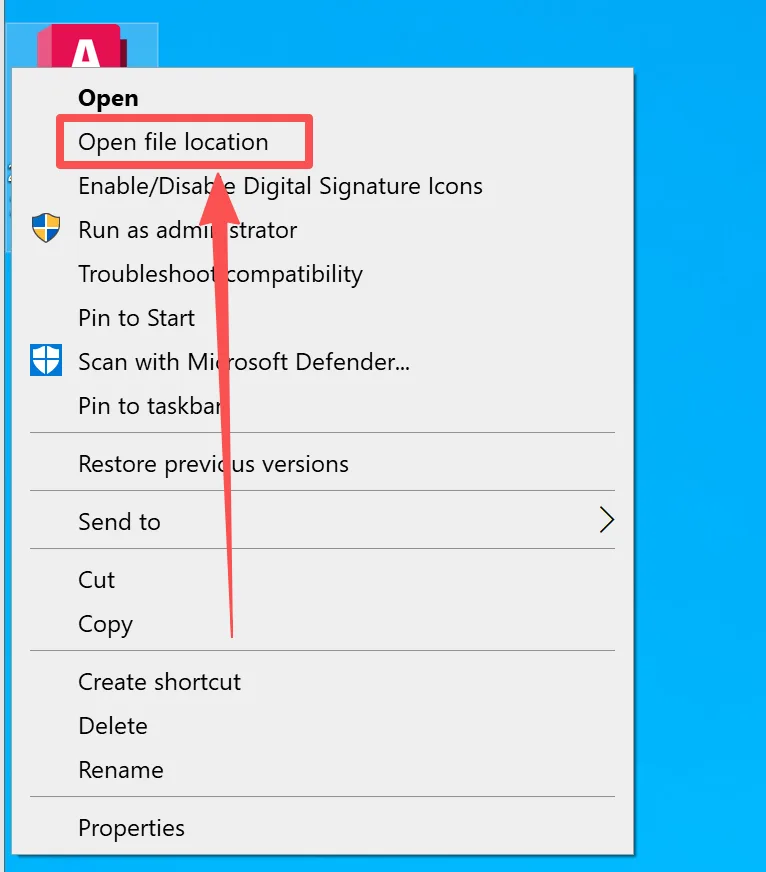
Part 2: Use deepuninstaller to Repair License Information
- Open the latest version of deepuninstaller.
- In the deepuninstaller interface, navigate to the Extensions section.
- Scroll down and locate the option labeled “CAD license invalid pop-up” or similar wording related to license repair.
- Paste the AutoCAD installation path (copied in Part 1, Step 2) into the designated input field within deepuninstaller.Image Placeholder: Shows path pasted into deepuninstaller
- Press
Enterto confirm the path. - Click Select Folder (or a similar button) to initiate the repair process for the specified directory.
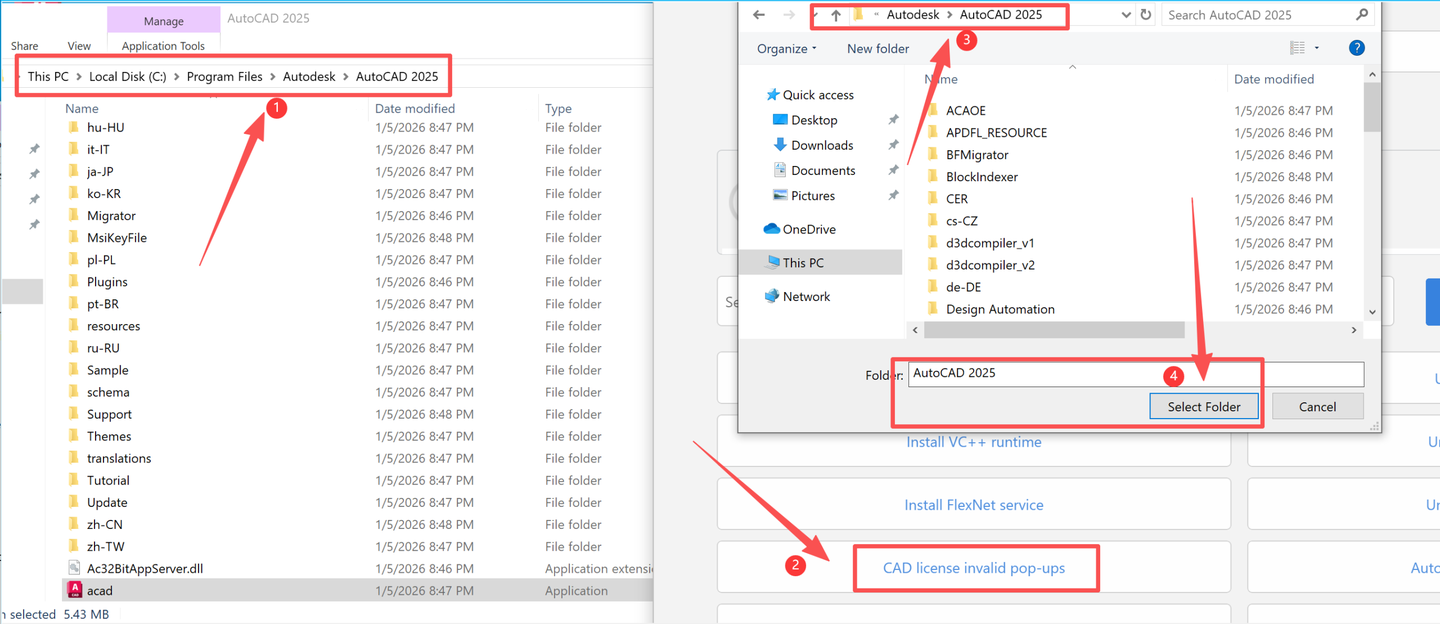

- Wait for the repair process to complete. A “Repair completed” message should be displayed.
Note: If multiple AutoCAD versions are installed, repeat Part 1 and Part 2 for each version’s installation directory.
Part 3: Reset AutoCAD Settings (If Issue Persists)
If the issue persists after performing the steps above, try resetting AutoCAD to its default settings:
Option A: Reset from Prompt
If AutoCAD displays a prompt with an option to “Reset to default settings”, click to confirm the reset.
Image Placeholder: AutoCAD reset prompt
Option B: Manual Reset via Options Dialog
- Open AutoCAD.
- Type
OP(for Options) in the command line and pressEnter. - In the Options dialog box, go to the Profiles tab.
- Select the
<<Unnamed Profile>>(or the active default profile). - Click Reset.
- Confirm the reset action.
- Click Set Current to make the reset profile active.Image Placeholder: AutoCAD Options dialog with Profiles tab open
- Click Apply and then OK to close the Options dialog.
Leave a Reply