 English
  Chinese
  Japanese
  Hindi
Hindi  Spanish
  French
  Arabic
  Bengali
  Russian
  Portuguese
  Indonesian
  Korean
  German
 Issue:
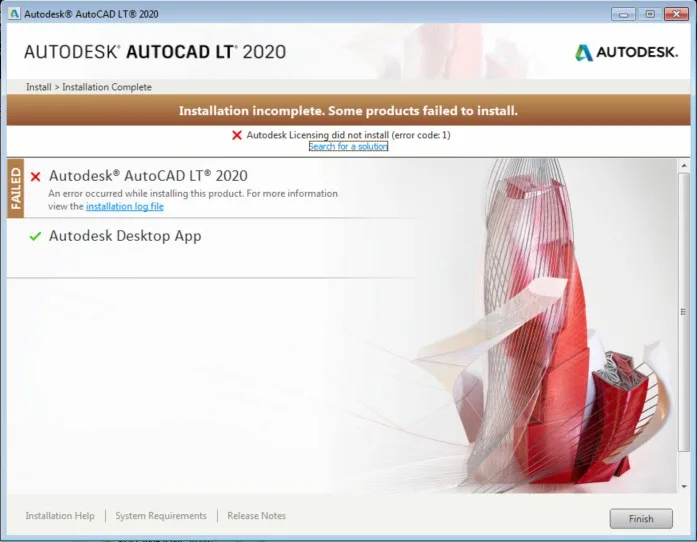
This article provides steps to resolve installation issues related to Autodesk Licensing Service failures or general installation errors (Error Code: 70 or Error Code: 1) for Autodesk 2021 products.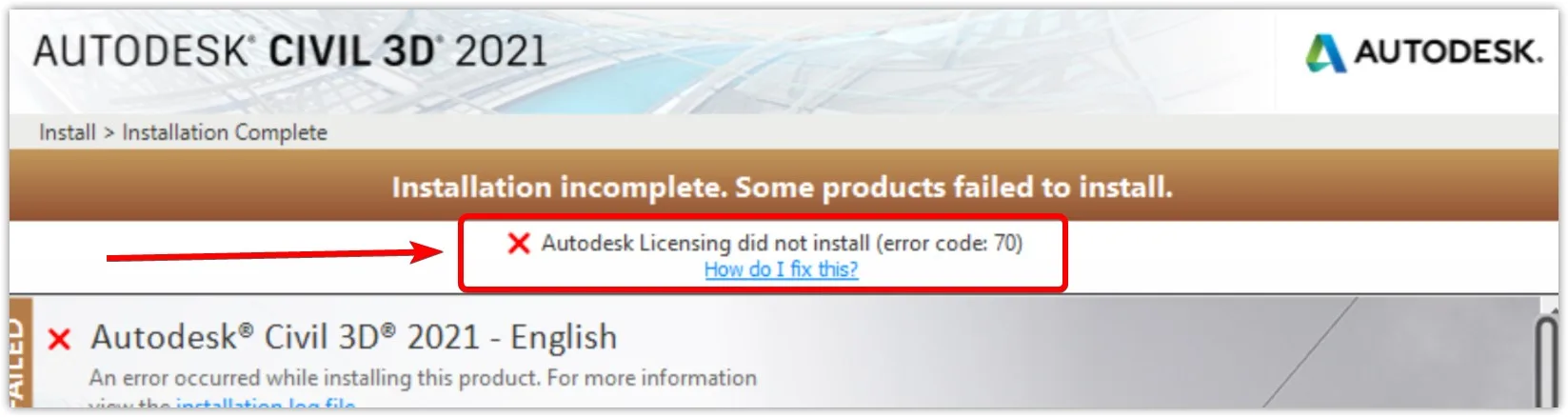
Steps
- Reinstall Autodesk Licensing Service:
- In your cleanup tool, click the
"UninstallAdsk Service "button. - Next, click
"InstallAdsk Service ."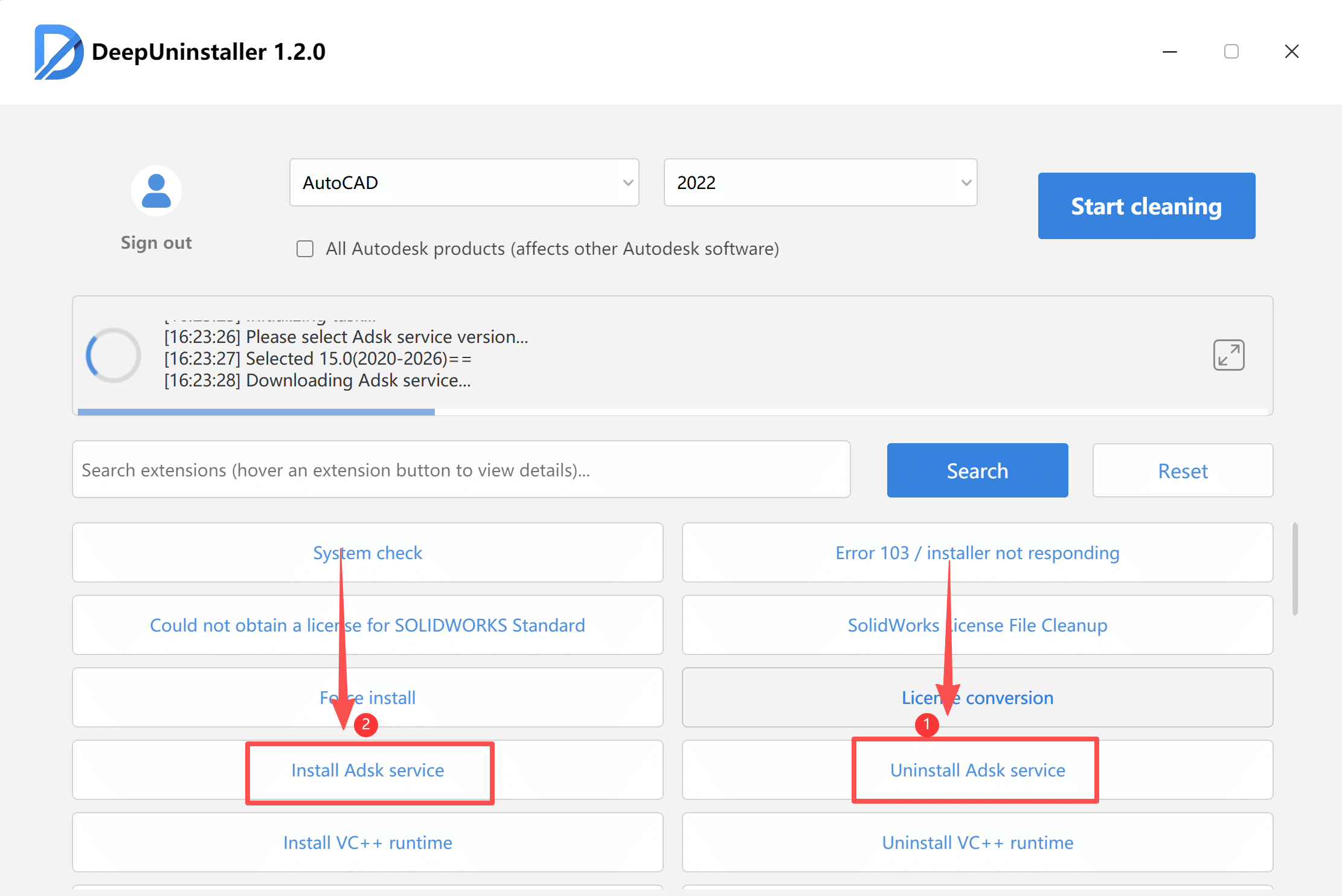
- If you are experiencing the error with a 2021 product, download the 11.0 ADSK file.
- In your cleanup tool, click the
- Replace
setup.iniConfiguration File:CRITICAL: Ensure that the Autodesk Desktop Licensing Service is running correctly as confirmed in Step 1 before proceeding.- Download the
setup.iniconfiguration file specific to your Autodesk 2021 product from the following links: - Note: Make sure to download the correct
setup.inifile for your specific product (e.g., for CAD, download the CADsetup.ini; for Revit, download the Revitsetup.ini). Downloading the incorrect file will render this solution ineffective. - After downloading, extract the
setup.inifile to your current folder. - Copy the
setup.inifile. - Navigate to the installation package directory of your Autodesk 2021 product (e.g.,
Revit2021orCAD2021installation folder). - Right-click within the directory and select
"Paste." - When prompted to replace the existing file, choose
"Copy and Replace." - Once the file is replaced, open and run
setup.exefrom the installation package directory to proceed with the product installation.
- Download the
Leave a Reply