 English
  Chinese
  Japanese
  Hindi
Hindi  Spanish
  French
  Arabic
  Bengali
  Russian
  Portuguese
  Indonesian
  Korean
  German
 Issue:
When opening multiple AutoCAD DWG files, each file opens in a new, separate AutoCAD application window instead of multiple documents within a single AutoCAD instance.
Solution
Follow these steps to configure AutoCAD to open multiple drawings within a single application window:
- Open deepuninstaller.
- Click on the Extended Features (or Extensions) option.
- Scroll through the options to locate the Fix CAD file association button and click it.
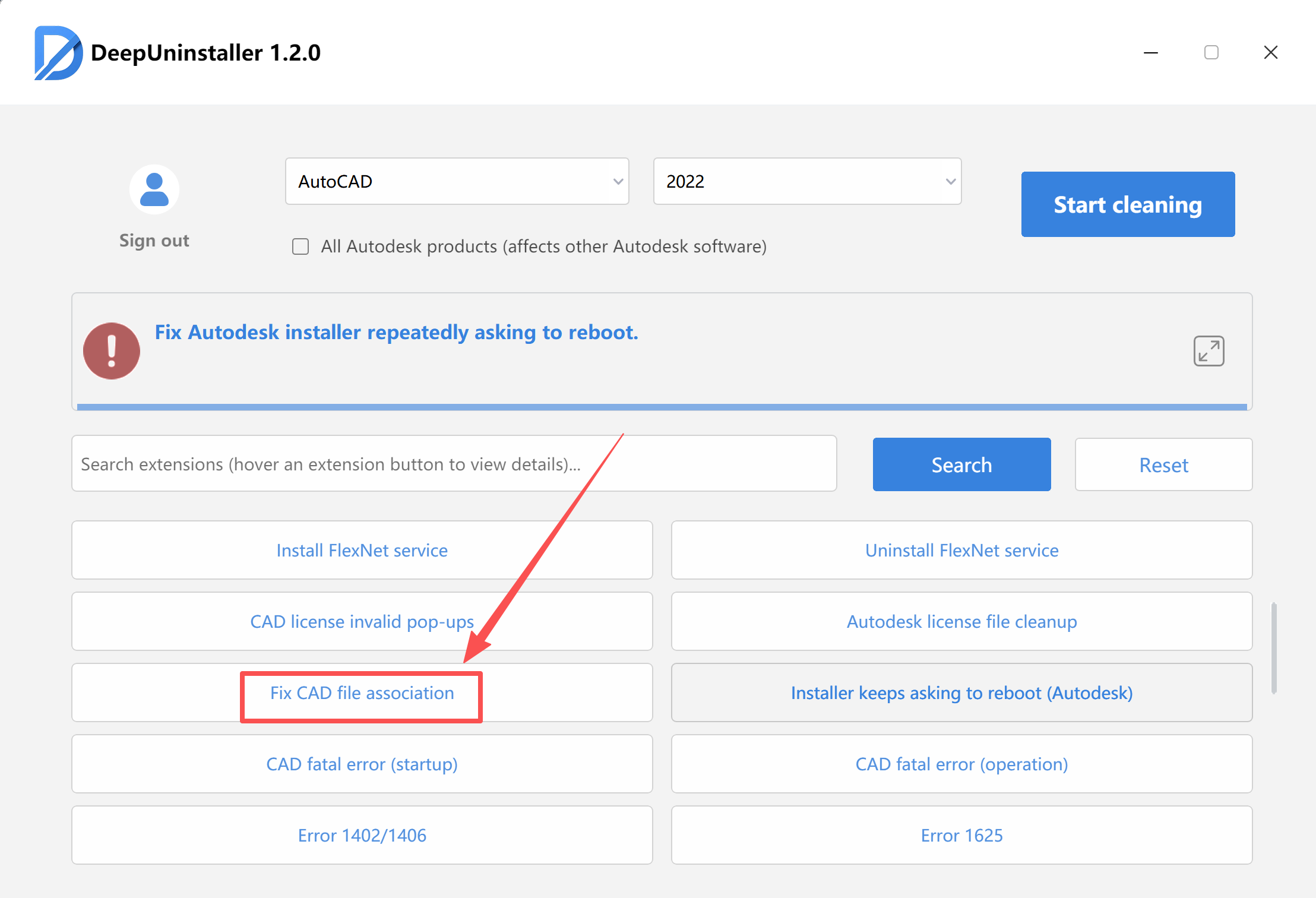
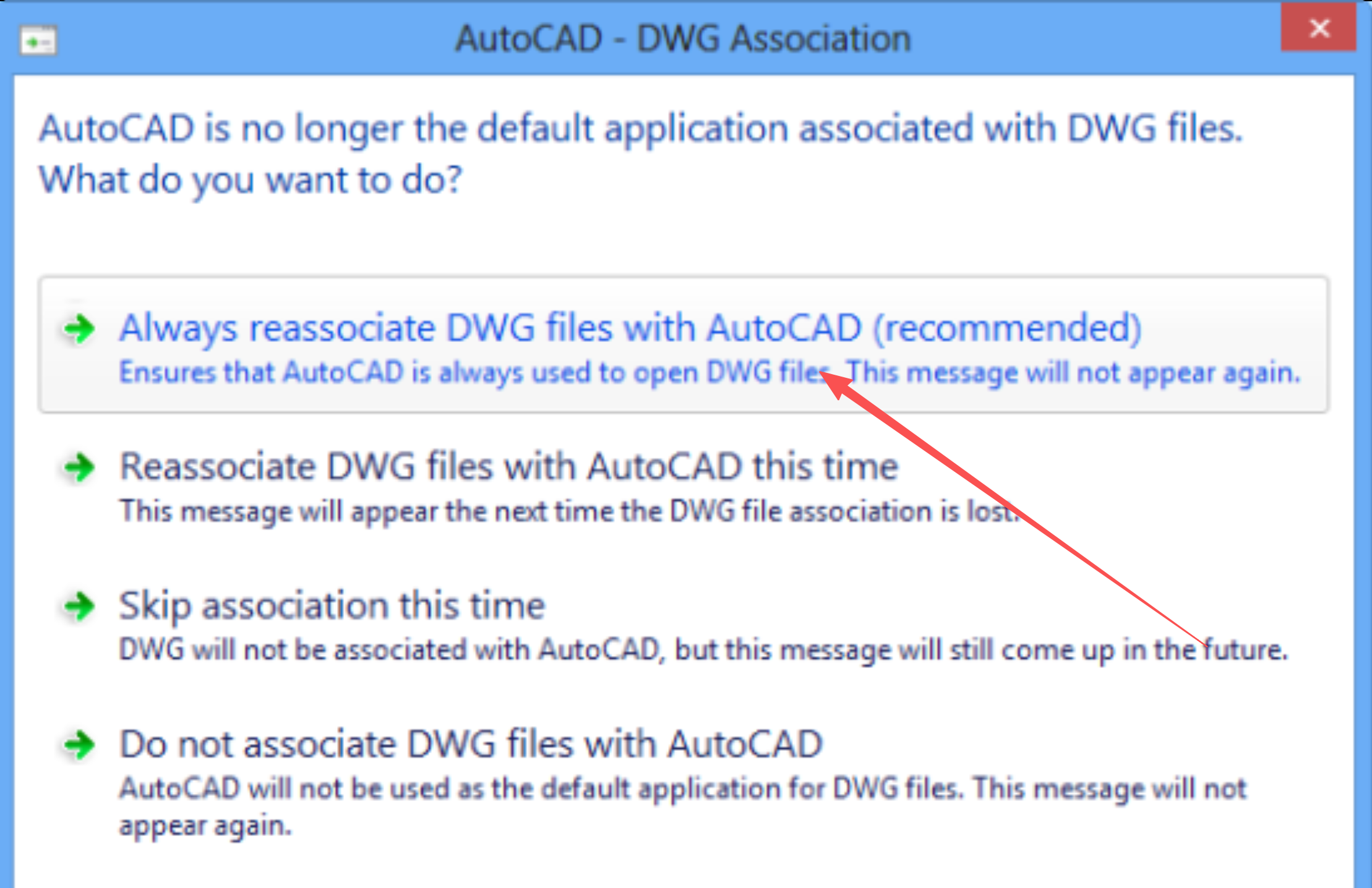
- Launch the main AutoCAD program. You will be prompted to re-associate files; select the first option to confirm.
- If the file still doesn’t open in the correct AutoCAD instance by default, set the default program manually: Right-click any DWG file. Select Open with > Choose another app. Select the Always use this app to open .dwg files checkbox . Browse and select a program:C:\Program Files\Common Files\Autodesk Shared\AcShellEx\aclauncher.exe
- Once you have confirmed the default opening method, launch AutoCAD and execute the following commands in the command line:
- Type
TASKBARand set its value to0. - Type
SDIand set its value to0.
- Type
- Open deepuninstaller.
- Click on the Extended Features (or Extensions) option.
- Click the Administrator has blocked this app button.
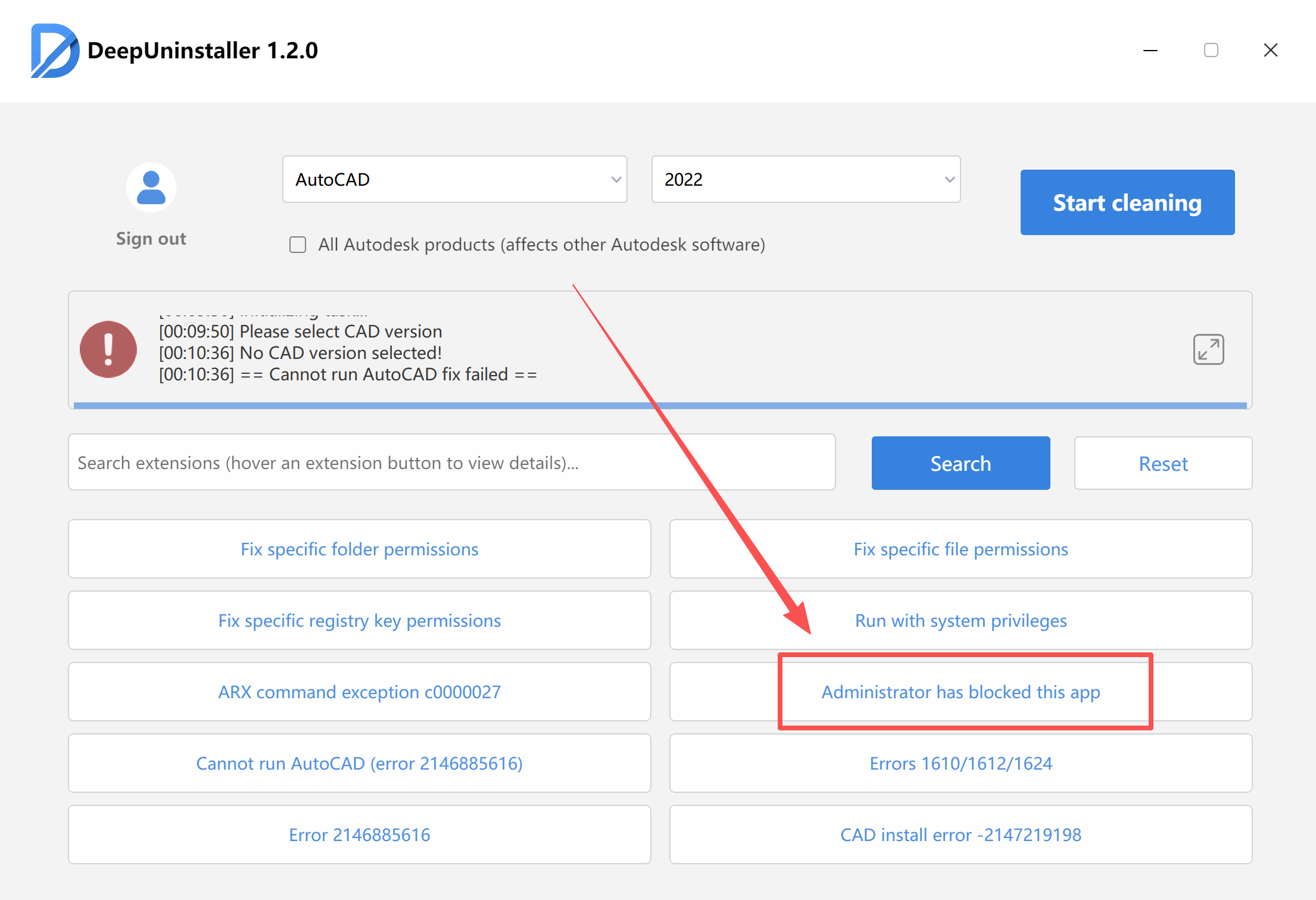
- Restart your computer.
- After restarting, attempt to open multiple DWG files again. They should now open within the same AutoCAD application window and display as parallel tabs or documents.
If the issue persists, carefully review all the steps and ensure they are executed in the prescribed order.
Leave a Reply