 English
  Chinese
  Japanese
  Hindi
Hindi  Spanish
  French
  Arabic
  Bengali
  Russian
  Portuguese
  Indonesian
  Korean
  German
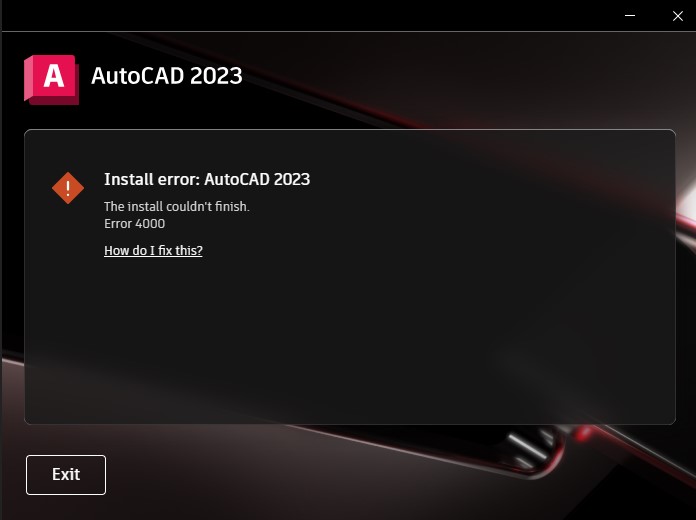
 Issue:
This article provides steps to resolve installation failures that may present as Error -9 or Error 4000 appearing interchangeably.
Solution
Follow the steps below in order:
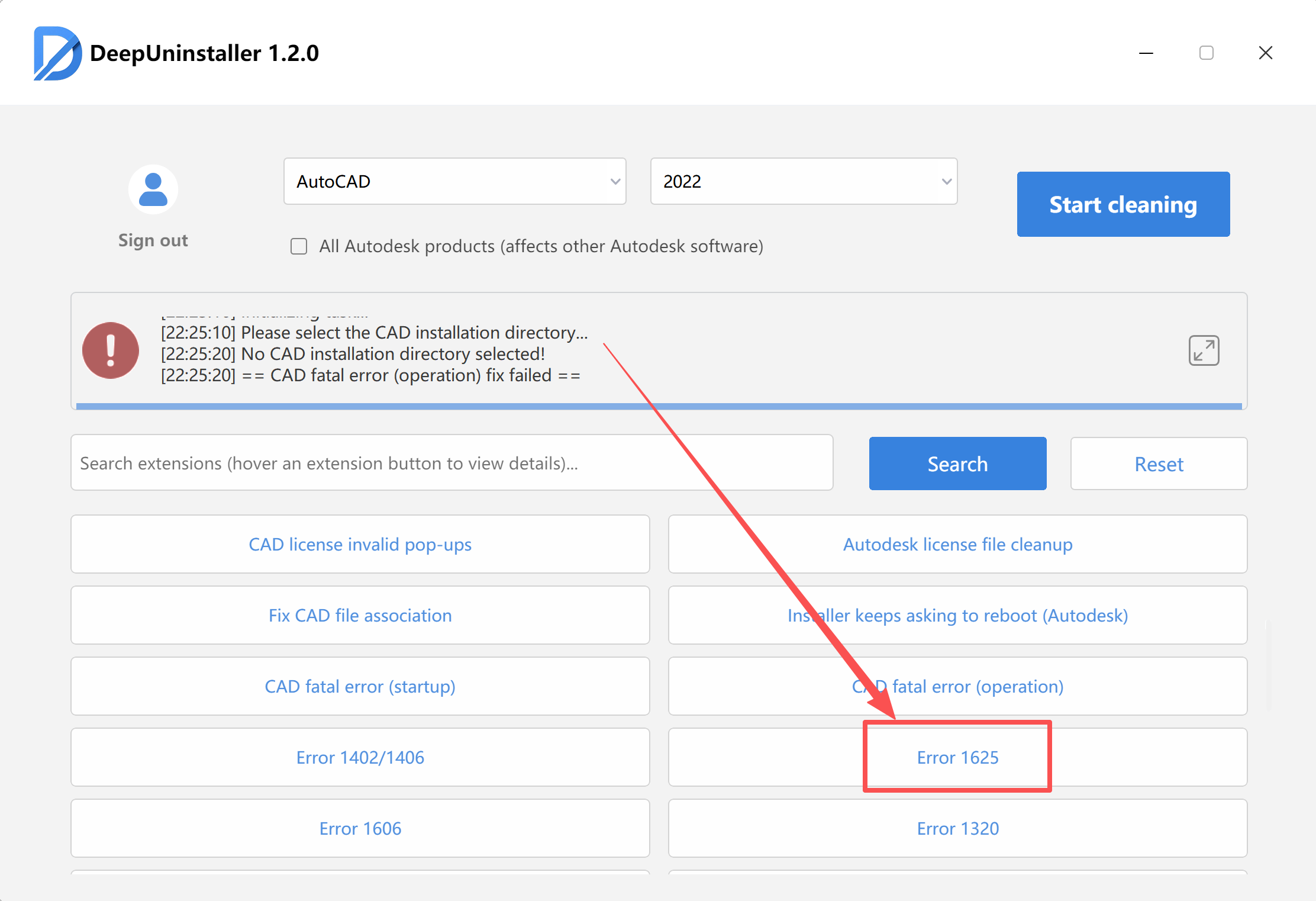
Step 1: Use deepuninstaller for 1625 Repair
- Download and launch
deepuninstaller. - Within the
deepuninstallerapplication, access its extensions. - Click on the “Error 1625 ” option and follow any on-screen prompts.
Step 2: Perform a Thorough Cleanup with deepuninstaller
- If a previous Autodesk product uninstallation was incomplete or left residual files, use
deepuninstallerto perform a thorough cleanup. - After the cleanup process is complete, restart your computer.
- Alternatively, if you prefer not to restart, manually start any stopped Autodesk (ADSK) services from the Windows Services Manager (
services.msc).
Step 3: Reinstall and Address Persistent Error 4000
- Attempt to reinstall the Autodesk product.
- If the installation still fails with Error 4000:
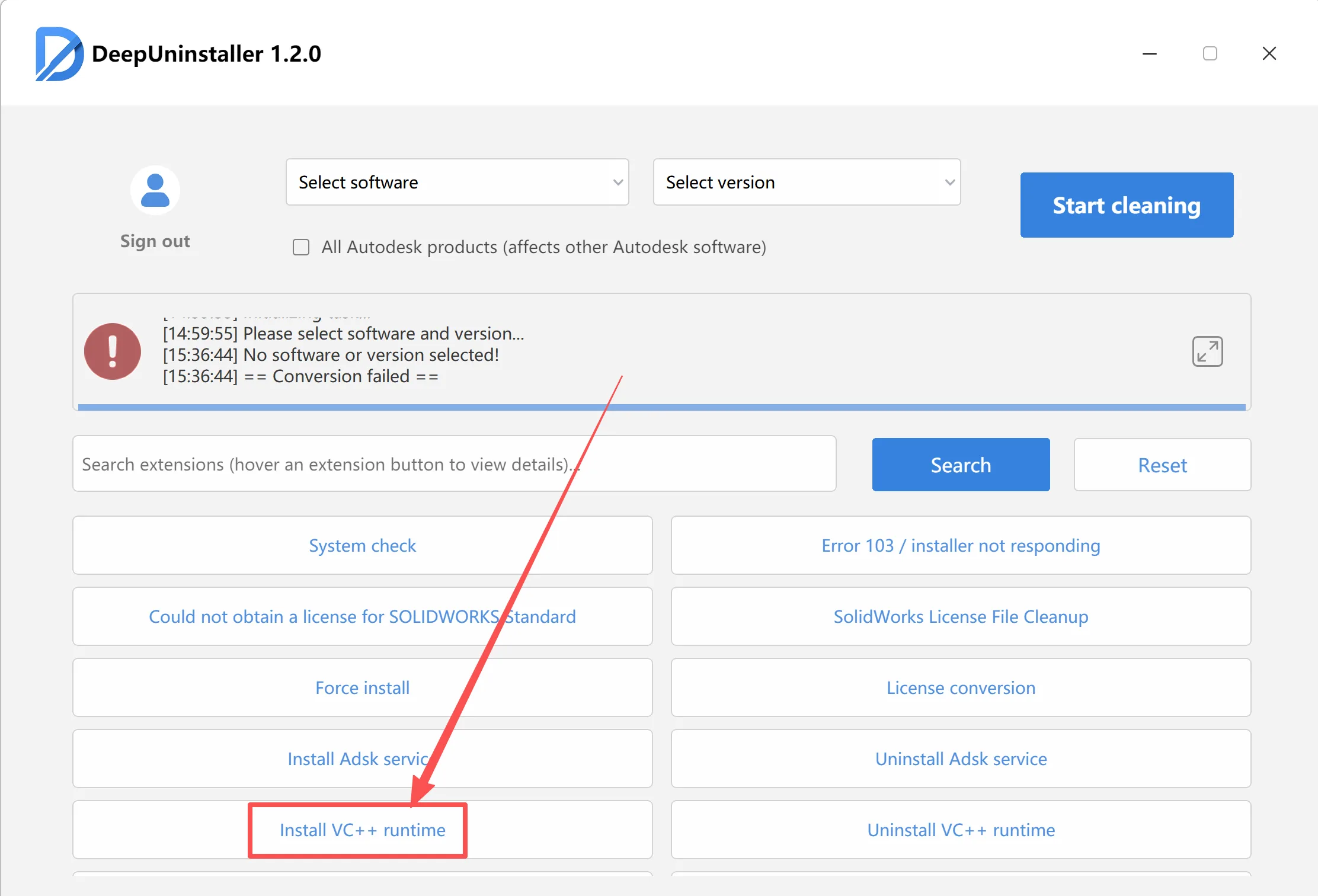
- Launch
deepuninstalleragain. - Within its extensions, locate and click on the “Install VC++ runtime” option. Follow the provided tutorial or instructions to ensure all necessary Microsoft Visual C++ Redistributables are correctly installed.
- After the C++ installation, return to the
deepuninstallerextensions. - Select the option to “Run with system privileges” to initiate the Autodesk product installation.
- Launch
Leave a Reply