 Chinese
  English
  Japanese
  Hindi
Hindi  Spanish
  French
  Arabic
  Bengali
  Russian
  Portuguese
  Indonesian
  Korean
  German
 Issue:
During the installation of an Autodesk product, the “Install” or “Next” button appears grayed out and cannot be clicked.
If a proper system cleanup is not performed, attempts to install Autodesk products (especially versions 2020 and later) may subsequently result in “Error 1603”.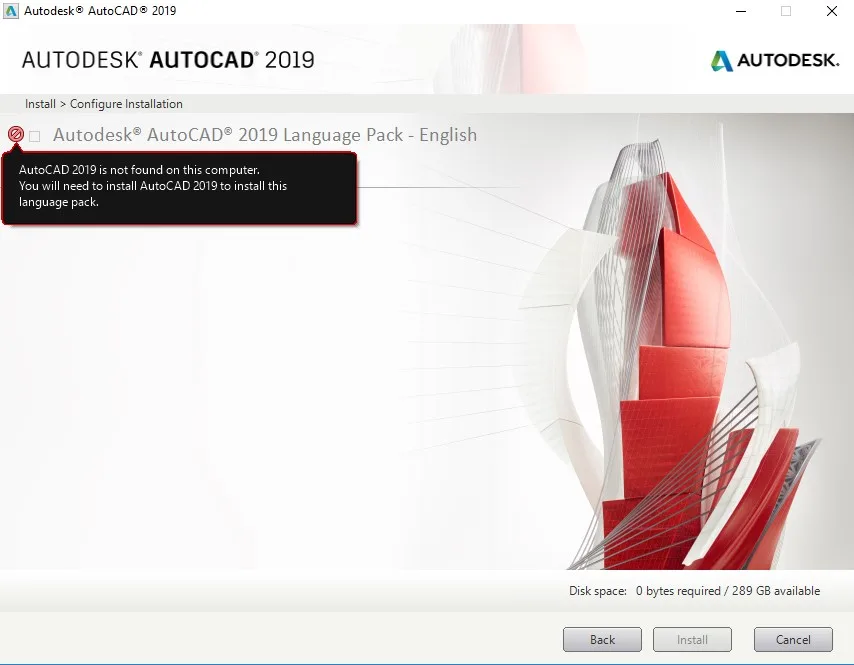
Causes
This issue is typically caused by an incomplete or incorrect uninstallation of a previous Autodesk product. Common reasons include:
- Residual installation files or folders remaining in the system.
- Corrupted or leftover registry entries from a prior installation attempt.
解决方案
To resolve this, perform a comprehensive clean uninstallation of any previous Autodesk software components, restart your computer, and then attempt the installation again.
- Perform a Clean Uninstall: Follow the official Autodesk procedures for a clean uninstall. This process ensures all leftover files, folders, and registry entries from previous installations are removed. Refer to the Autodesk Knowledge Network for detailed instructions on how to perform a clean uninstall for your specific product and operating system.
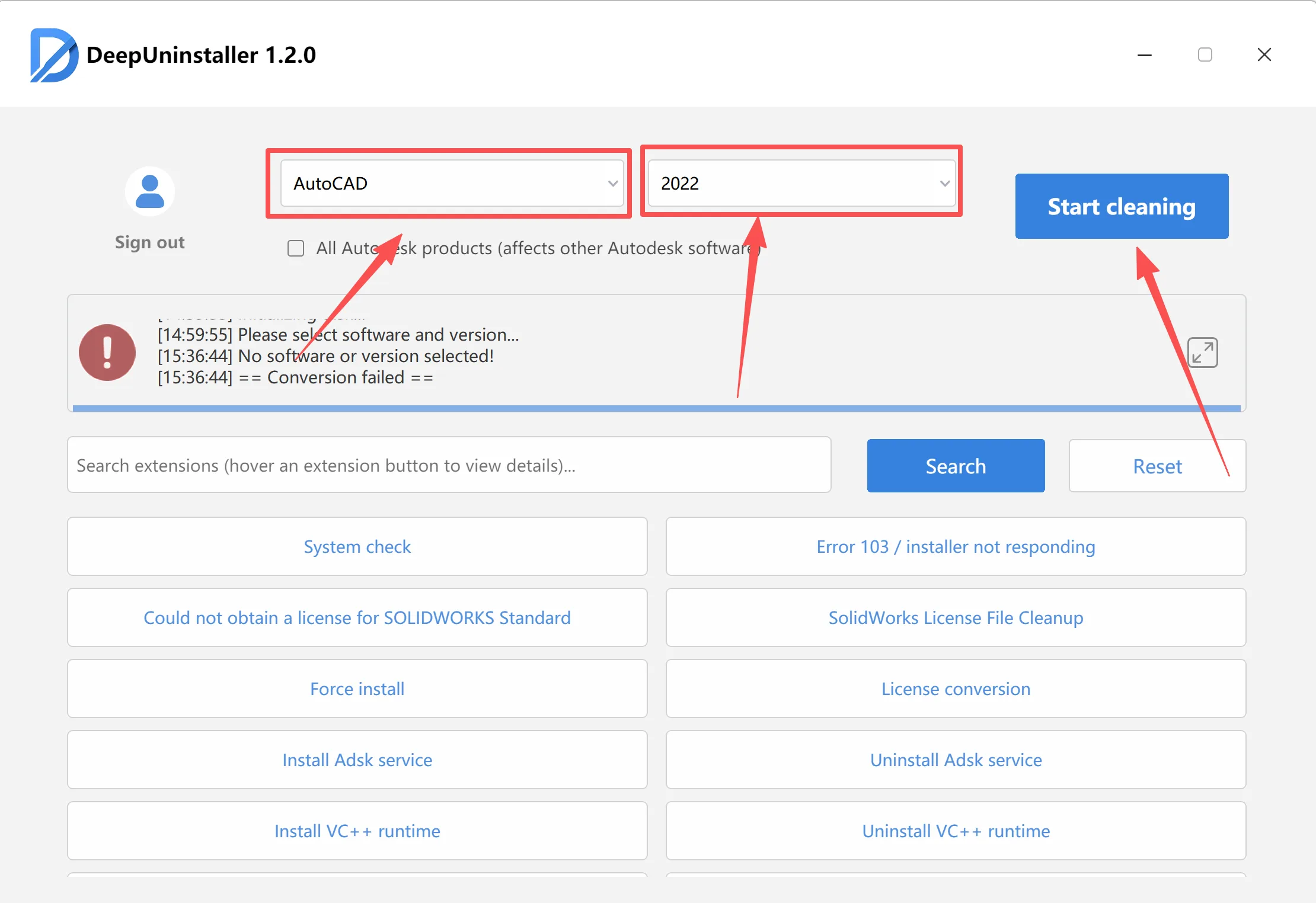
- Restart the Computer: After completing the clean uninstallation process, restart your system to ensure all changes are applied.
- Reattempt Installation: Once the computer has restarted, try installing the Autodesk product again.
发表回复