 Russian
  English
  Chinese
  Japanese
  Hindi
Hindi  Spanish
  French
  Arabic
  Bengali
  Portuguese
  Indonesian
  Korean
  German
 Issue:
When attempting to execute code or launch an Autodesk application, an error message “The program can’t start because adimint.dll is missing from yourcomputer. Try reinstalling the program to fix this problem.” appears. Simply replacing the adlmint.dll file often has a very low success rate and may lead to other missing DLL prompts. This error typically occurs after installing software without properly uninstalling or cleaning residual files from previous installations.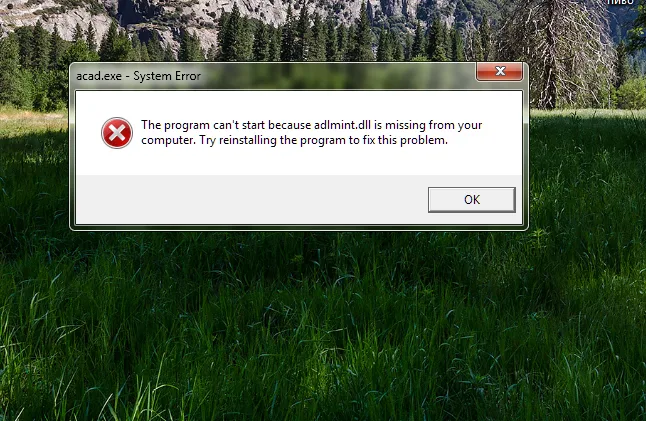
Cause
This issue is commonly caused by remnants of previous Autodesk software installations or incomplete uninstallation processes that leave corrupted or conflicting files behind.
Решение
To resolve the “adlmint.dll not found” error, perform a thorough cleanup of any previous Autodesk software installations using a deep uninstaller tool, then reinstall the software.
Steps
- Acquire a deep uninstaller tool. Search for tools.
- Run the deep uninstaller tool.
- Within the deep uninstaller tool, select the corresponding version of the Autodesk software that is causing the error.
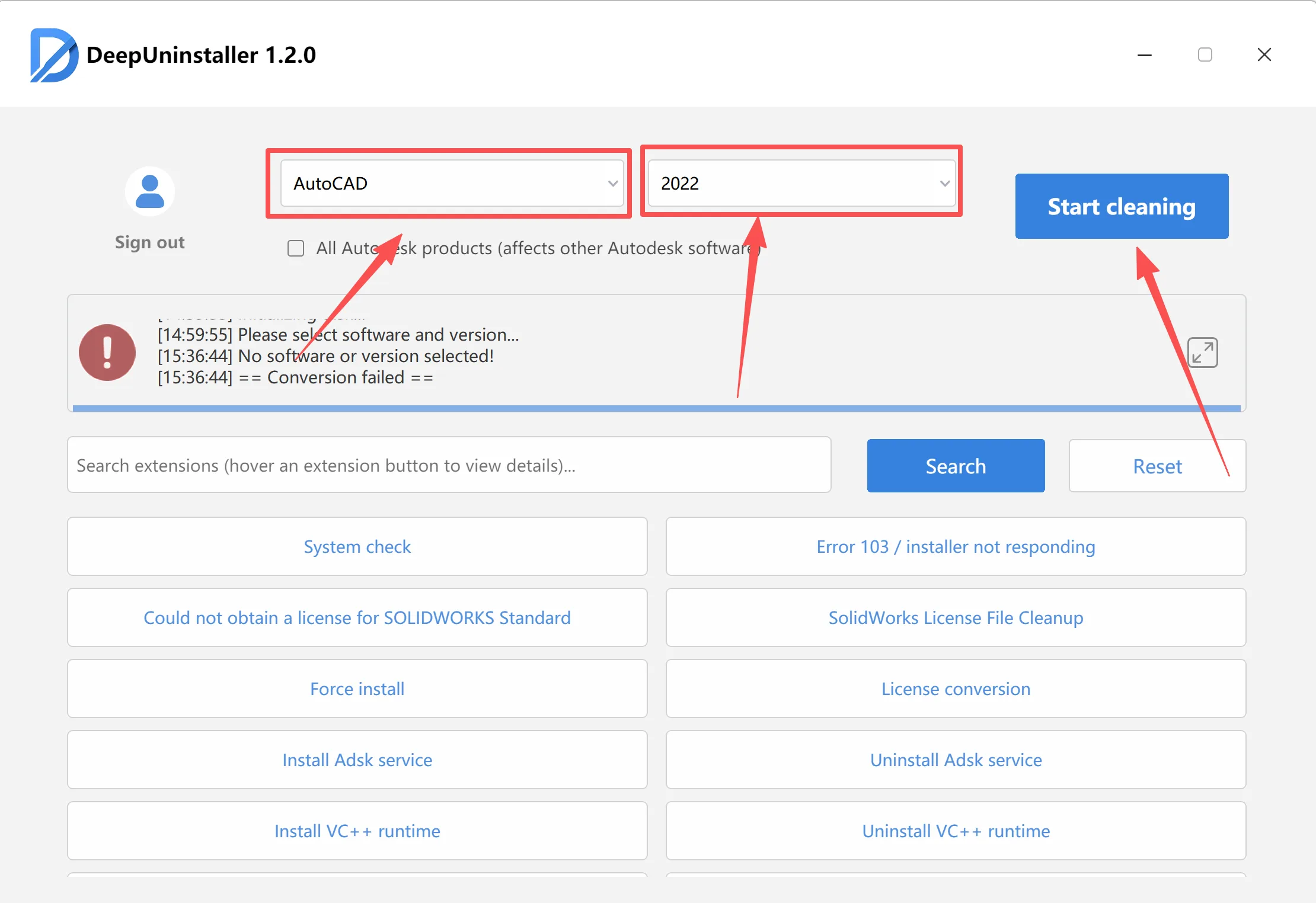
- Perform a thorough cleanup using the deep uninstaller tool to remove all residual files and registry entries associated with the Autodesk software.
- Restart your computer to ensure all changes are applied.
- Attempt to install the Autodesk software again. The installation should now complete successfully without the
adlmint.dllerror.
For more detailed information on Autodesk software uninstallation, refer to the official Autodesk documentation.
Example Command
"C:\Program Files\Autodesk\YourSoftware\uninstall.exe" /s /x "{ProductCode}"
Добавить комментарий