 Portuguese
  English
  Chinese
  Japanese
  Hindi
Hindi  Spanish
  French
  Arabic
  Bengali
  Russian
  Indonesian
  Korean
  German
 Issue:
When installing Autodesk CAD software, the following error message appears:
Error 1632: The temporary folder on the drive is full or inaccessible. Please free up some space or verify you have write access to temporary files.
Cause
This error typically indicates that the temporary folders required for installation are either full, lack sufficient free space, or the user account does not have the necessary write permissions.
Solução
To resolve this issue, follow these steps to clear temporary files and adjust folder permissions:
Step 1: Clean Up and Restart
- It is recommended to use
deepuninstallerto clean your computer of software remnants. - Restart your computer after the cleanup process.
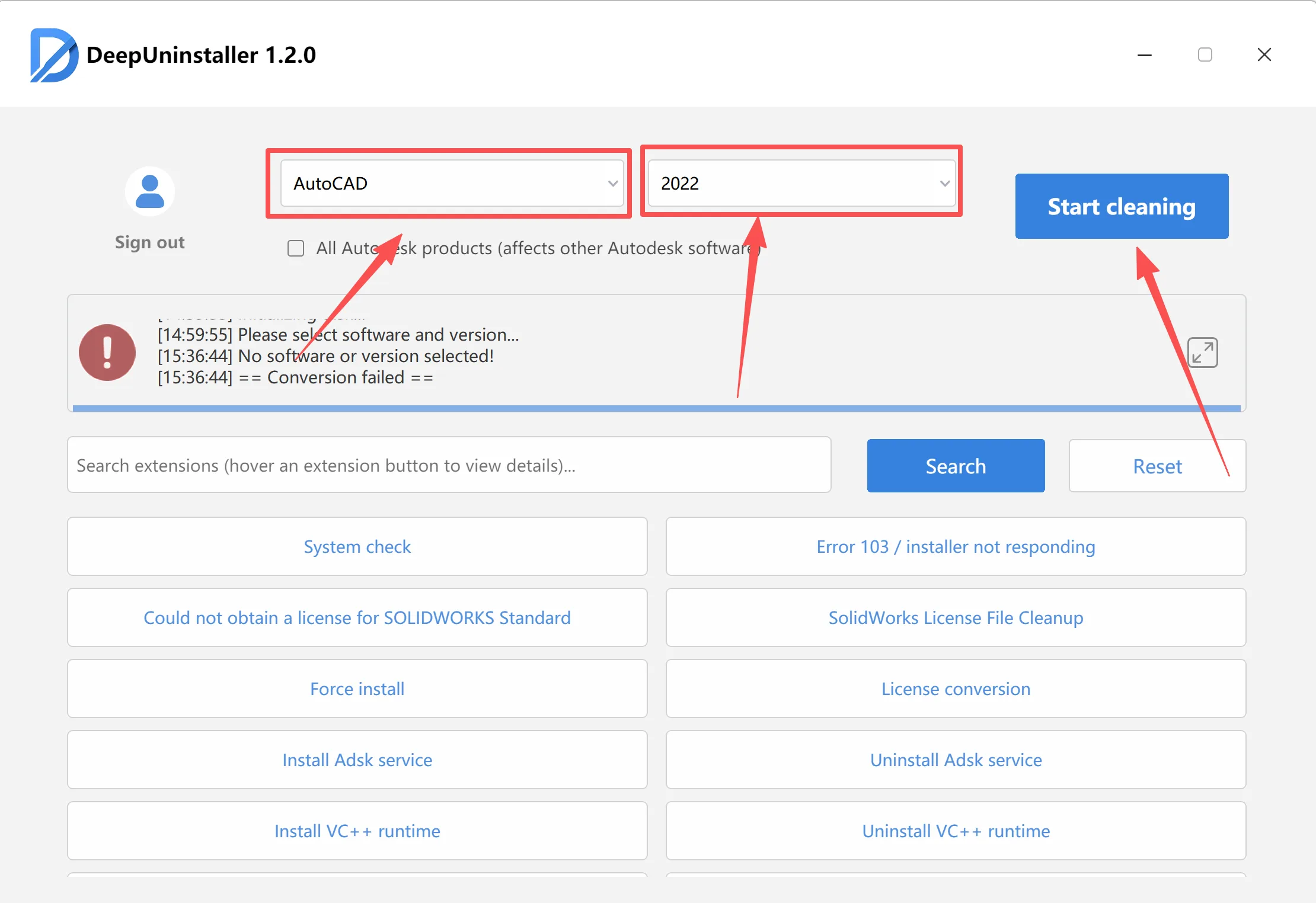
Step 2: Access and Adjust Permissions for the User Temporary Folder
- Use the “Fix specific folder permissions” button in DeepUninstaller to repair the permissions for the %temp% folder and the C:\Windows\Installer folder.
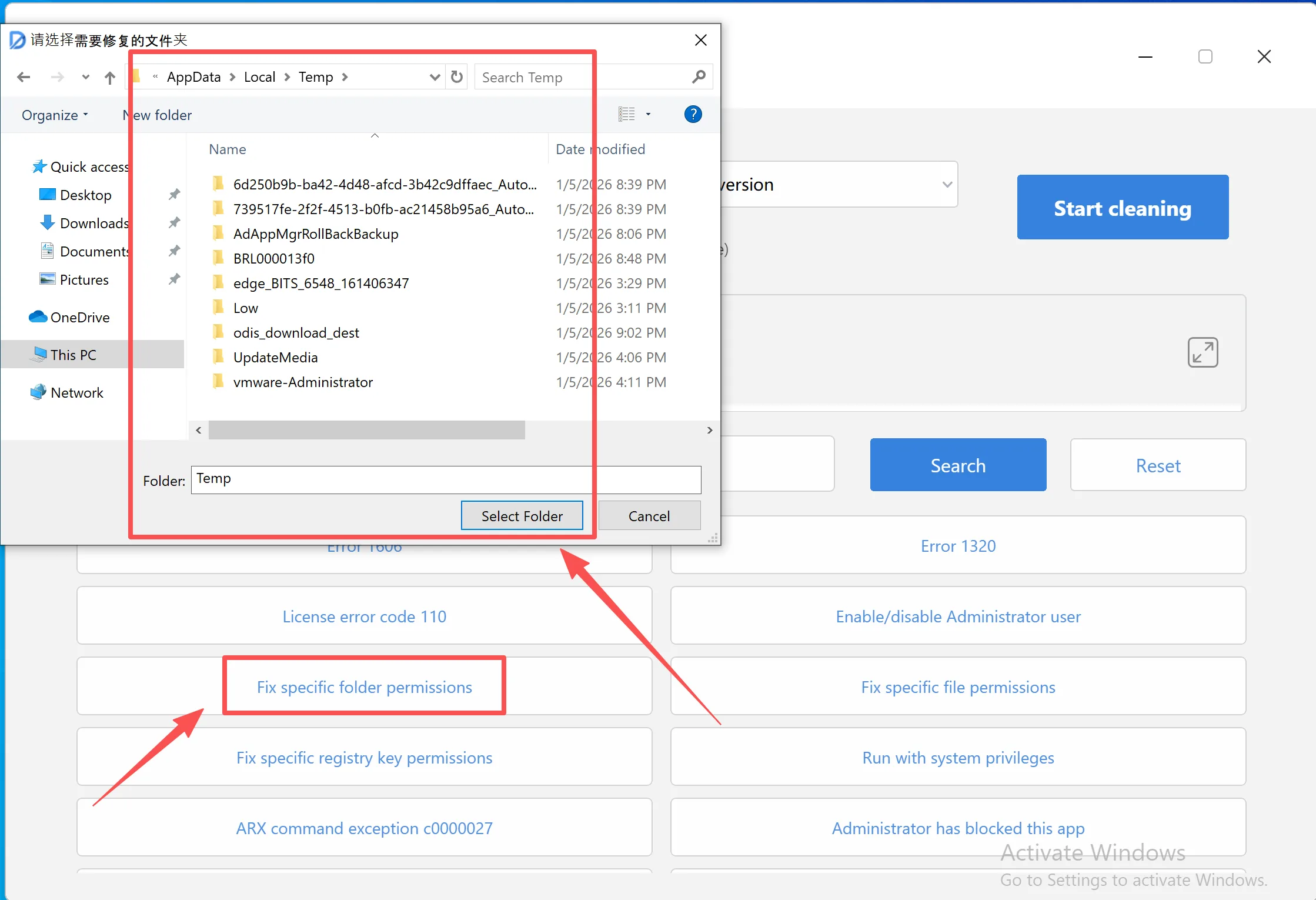
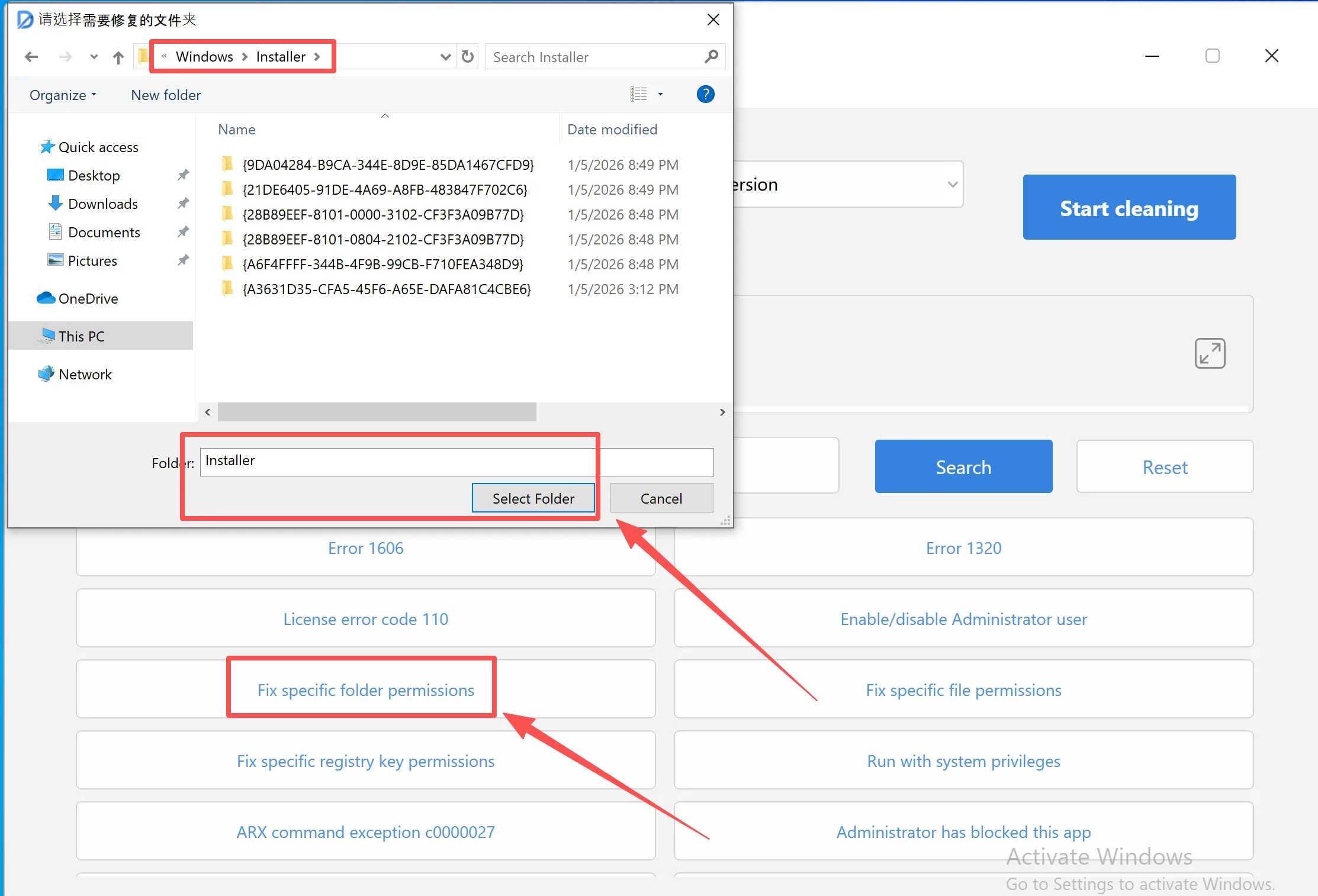
- Restart Installation
- Open the
deepuninstallersoftware. - Click the Run with system privileges option.
- Navigate to your Autodesk CAD software installation package, locate the
setup.exefile, click to open it, and begin the installation.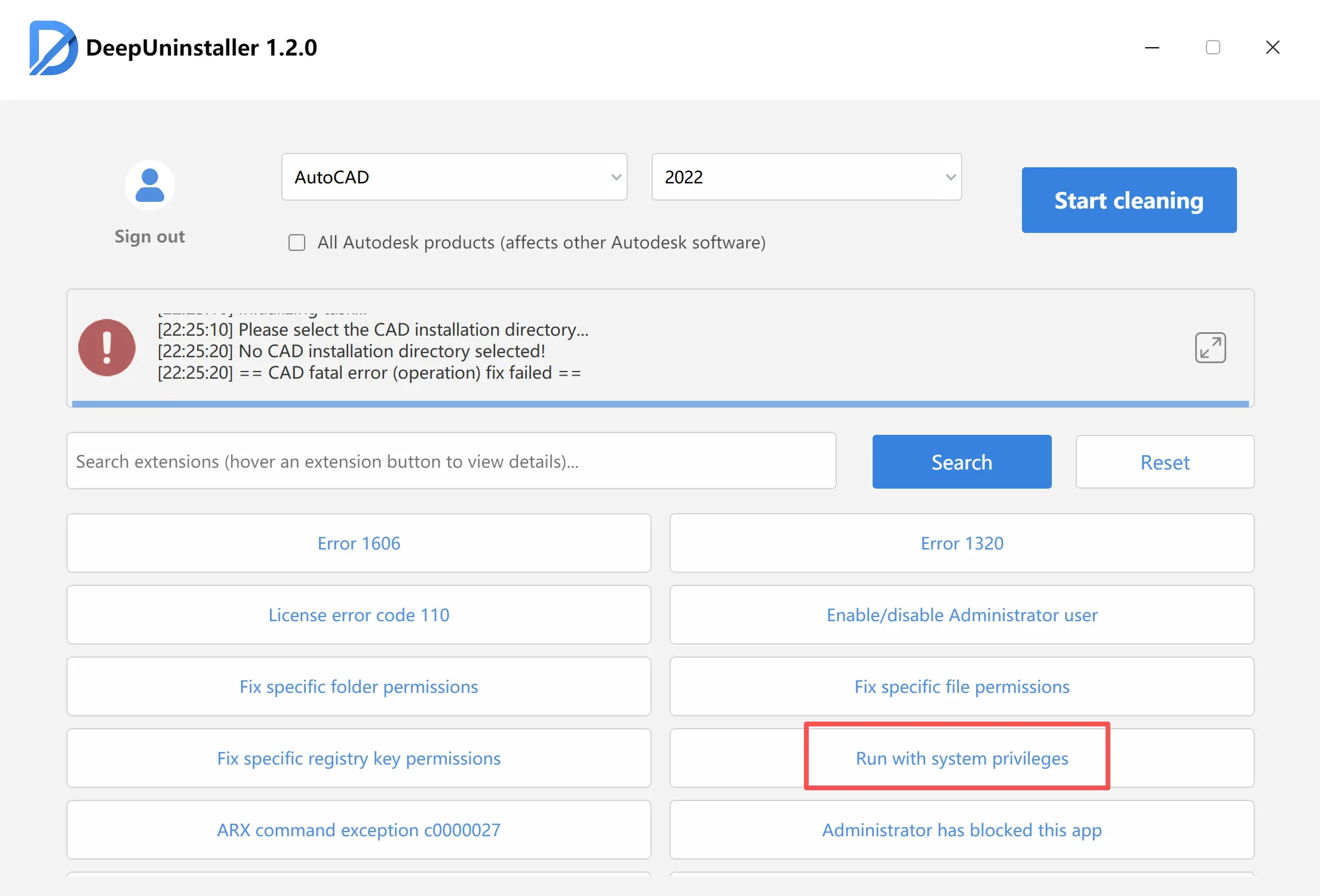
By following these steps, you should be able to resolve the CAD installation Error 1632 related to full or inaccessible temporary folders. Ensure you follow all instructions accurately, utilize deepuninstaller for cleanup, and properly configure folder permissions.
Deixe um comentário