 Korean
  English
  Chinese
  Japanese
  Hindi
Hindi  Spanish
  French
  Arabic
  Bengali
  Russian
  Portuguese
  Indonesian
  German
 Issue:
After installing a newer version of AutoCAD (e.g., AutoCAD 2023), AutoCAD 2016 crashes upon launch. It may open successfully once after a system restart, but subsequent attempts result in an “Invalid License” pop-up and crash.
Cause:
This behavior typically indicates a conflict or corruption in license components shared between different versions of AutoCAD. Installing a newer version can sometimes overwrite or modify files essential for older versions’ licensing, leading to validation failures. The 딥인스톨러 tool aims to resolve these underlying licensing issues.
솔루션:
Follow these steps to resolve the AutoCAD 2016 licensing issue using the 딥인스톨러 tool.
Step 1: Locate and Copy AutoCAD 2016 Installation Directory
- Right-click the AutoCAD 2016 icon (e.g., from the desktop, Start menu, or taskbar) and select “Open file location”.
- In the File Explorer window that opens, navigate to the parent folder containing the AutoCAD 2016 executable. Copy the full path of this installation directory.
Step 2: Use deepuninstaller to Repair License Issues
- Download and open the latest version of
딥인스톨러. - In the
딥인스톨러application, click on “Extensions”. - Scroll down to the bottom of the “Extensions” list and select the option related to “CAD license invalid pop-ups” or similar wording that addresses CAD license issues.
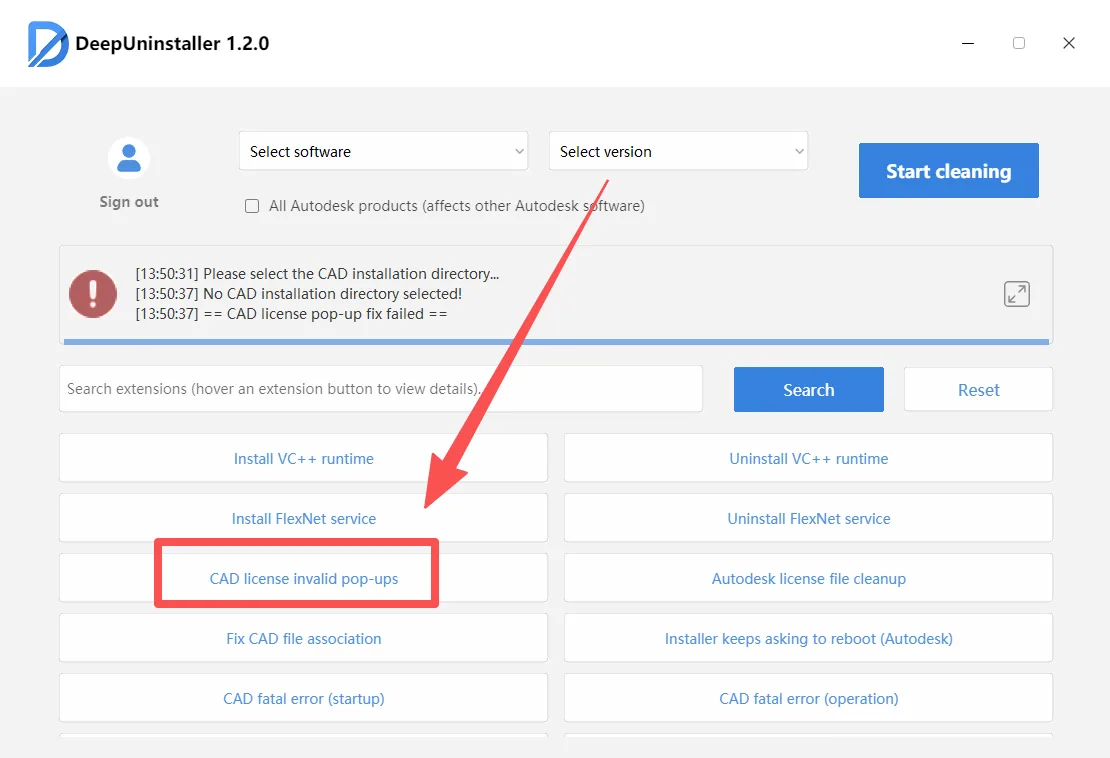
- Paste the AutoCAD 2016 installation directory path that you copied in Step 1 into the designated field within
딥인스톨러.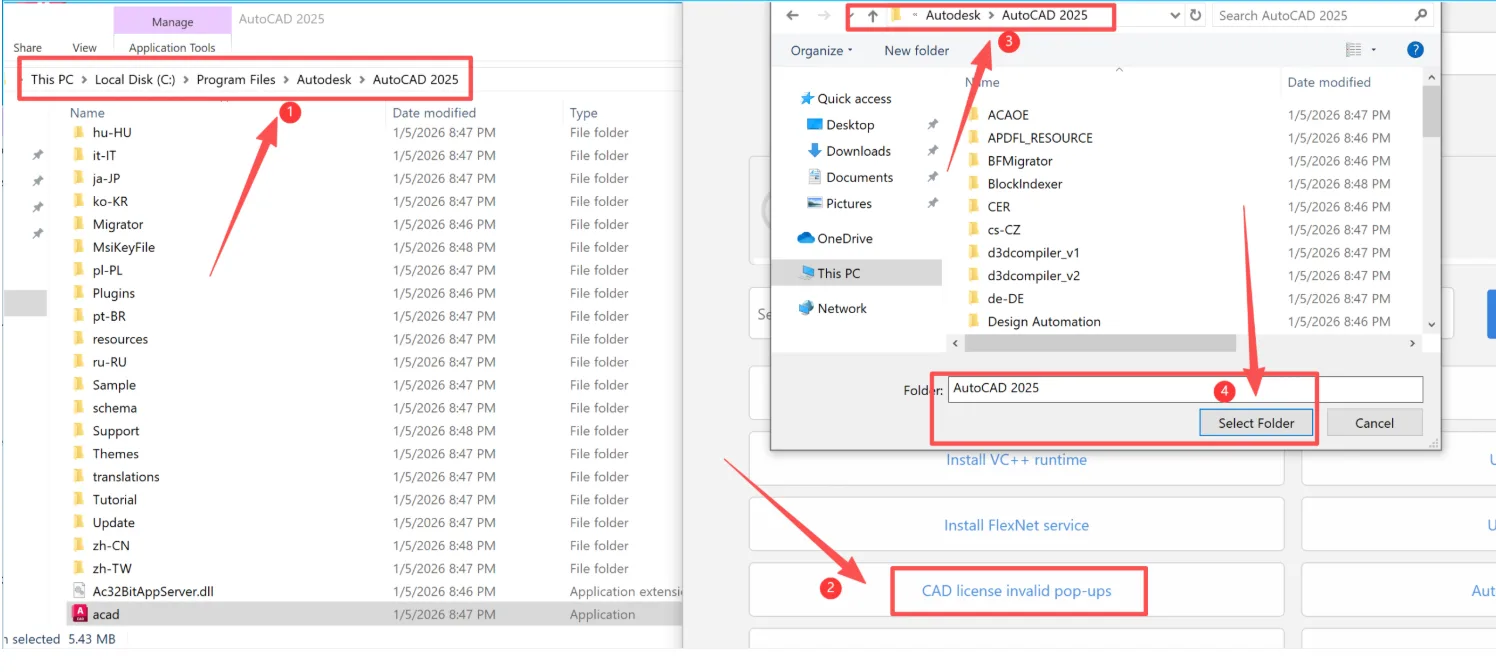

- After pasting the path, press Enter to confirm the entry.
- Click the “Select Folder” button to initiate the repair process.
- A confirmation message, such as “Repair Complete”, will be displayed once the process is finished.
답글 남기기