 Japanese
  English
  Chinese
  Hindi
Hindi  Spanish
  French
  Arabic
  Bengali
  Russian
  Portuguese
  Indonesian
  Korean
  German
 If you are unable to open DWG files by double-clicking them, and Windows displays a ‘Windows cannot find the file’ error, follow these steps to resolve the file association issue.
ソリューション
Method 1: Repair File Associations Using deepuninstaller
- Open
ディープアンインストーラ. - Navigate to the
ExtensionsorUtilitiessection. - Select
Fix CAD file association.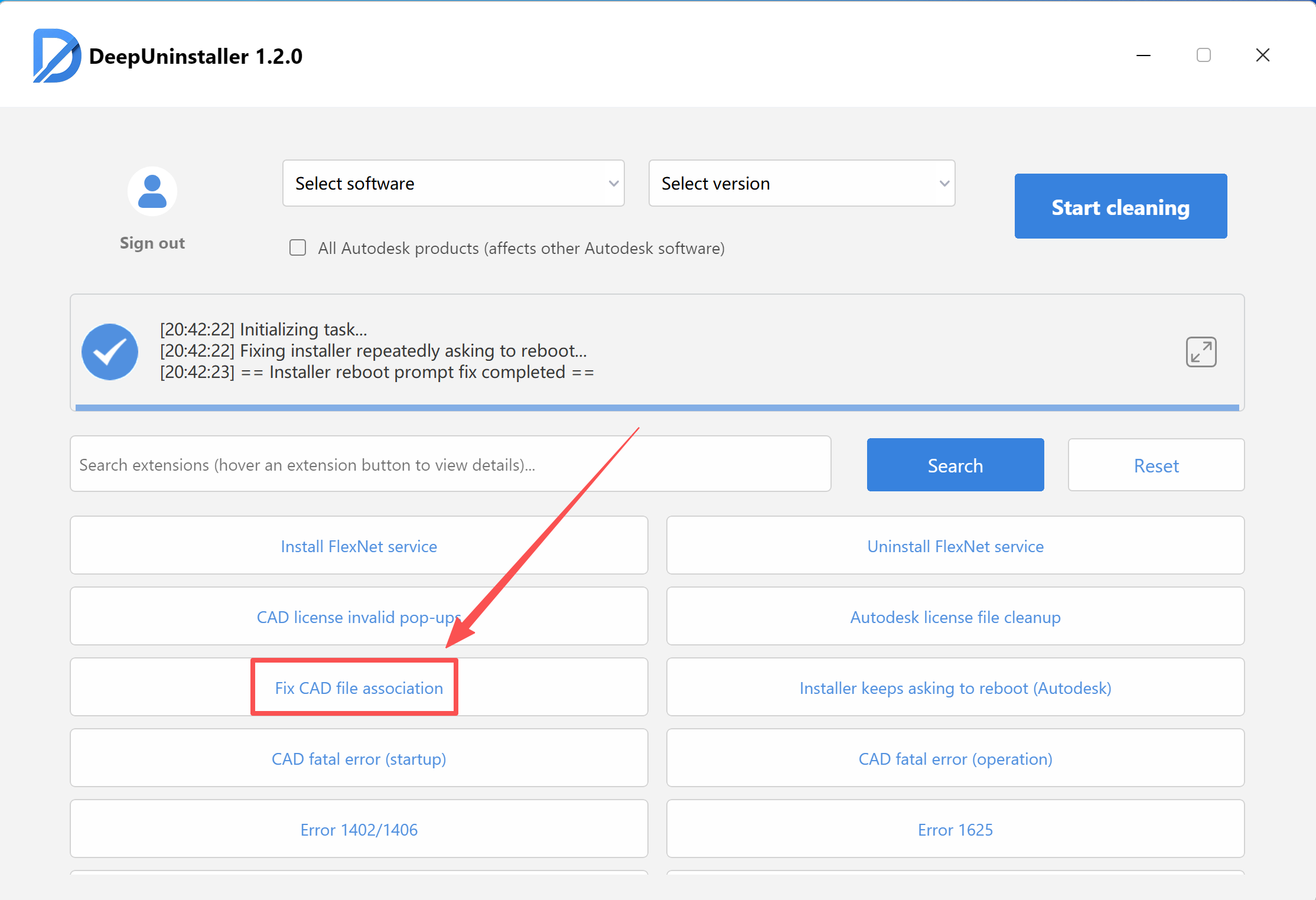
- After the repair process, attempt to open a CAD file that you wish to associate with AutoCAD.
- A prompt will appear asking if you want to
Always associate with DWG files.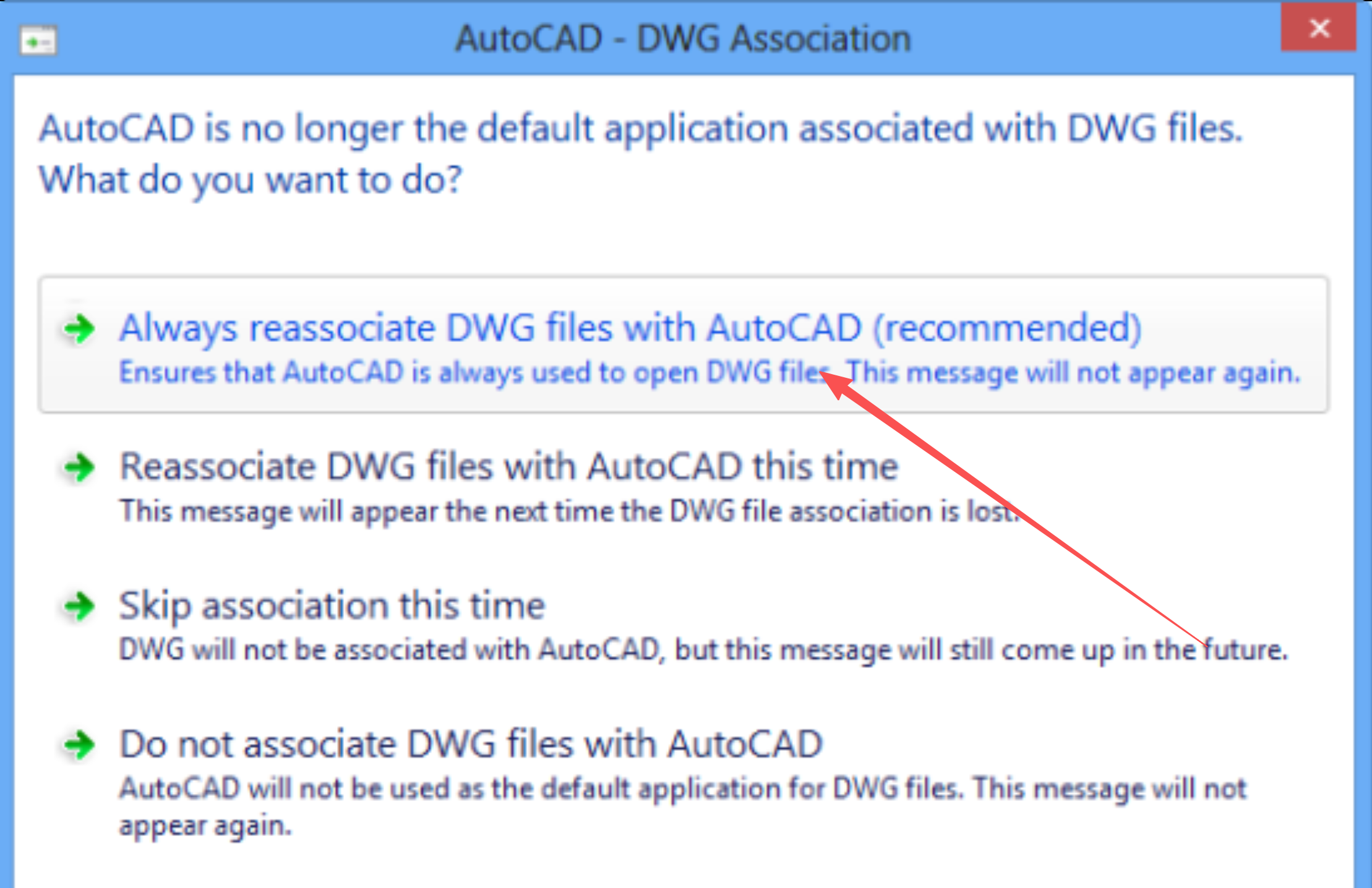
- Select
Always.
Method 2: Manually Associate DWG Files
If the issue persists, you can manually set the file association:
- Right-click on a DWG file.
- Select
Open With > Choose another app. - From the list of programs, select
AutoCAD DWG Launcher. - Ensure the
Always use this app to open .dwg filescheckbox is selected. - Click
OK.
コメントを残す