 Indonesian
  English
  Chinese
  Japanese
  Hindi
Hindi  Spanish
  French
  Arabic
  Bengali
  Russian
  Portuguese
  Korean
  German
 Issue:
This issue is caused by missing resource files. This can occur if files were accidentally deleted, renamed, or moved from their original location.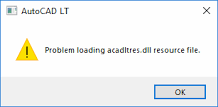
Solusi
To resolve this issue, try one of the following solutions:
Solution 1: Revert File Changes
If you have recently renamed or moved the acadres.dll file or related resource files yourself, attempt to revert these changes to their original state.
Solution 2: Perform a Clean Uninstall and Reinstall
If you are unsure whether files were manually altered, or if reverting changes doesn’t resolve the issue, a clean uninstall and reinstall of AutoCAD is recommended. This ensures all missing or corrupted files are properly replaced.
- Use a deepuninstaller tool:
- Open your preferred deepuninstaller application.
- Select “CAD” as the software you wish to clean.
- Choose the specific version of the AutoCAD software that is experiencing the issue.
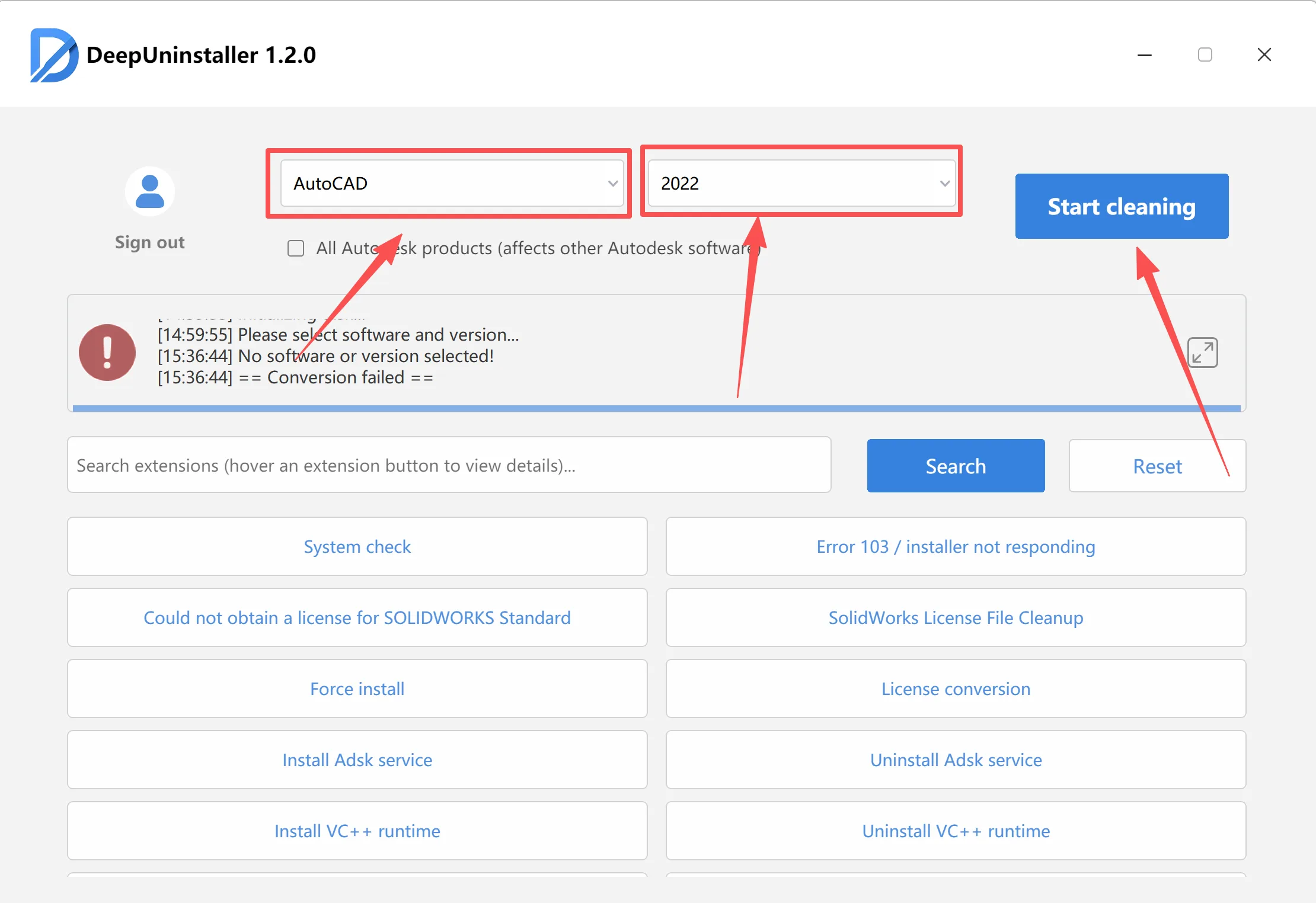
- Click the “Clean” or “Uninstall” button to thoroughly remove all traces of the software.
- Reinstall AutoCAD: After the deepuninstaller completes the removal process, reinstall AutoCAD from your original installation media or downloaded installer.
Tinggalkan Balasan