 Indonesian
  English
  Chinese
  Japanese
  Hindi
Hindi  Spanish
  French
  Arabic
  Bengali
  Russian
  Portuguese
  Korean
  German
 Issue:
When installing Autodesk CAD software, you may encounter errors 1402 and 1406, indicating that the system is “unable to open the registry.” This article provides a one-click solution to resolve these issues.
Symptoms
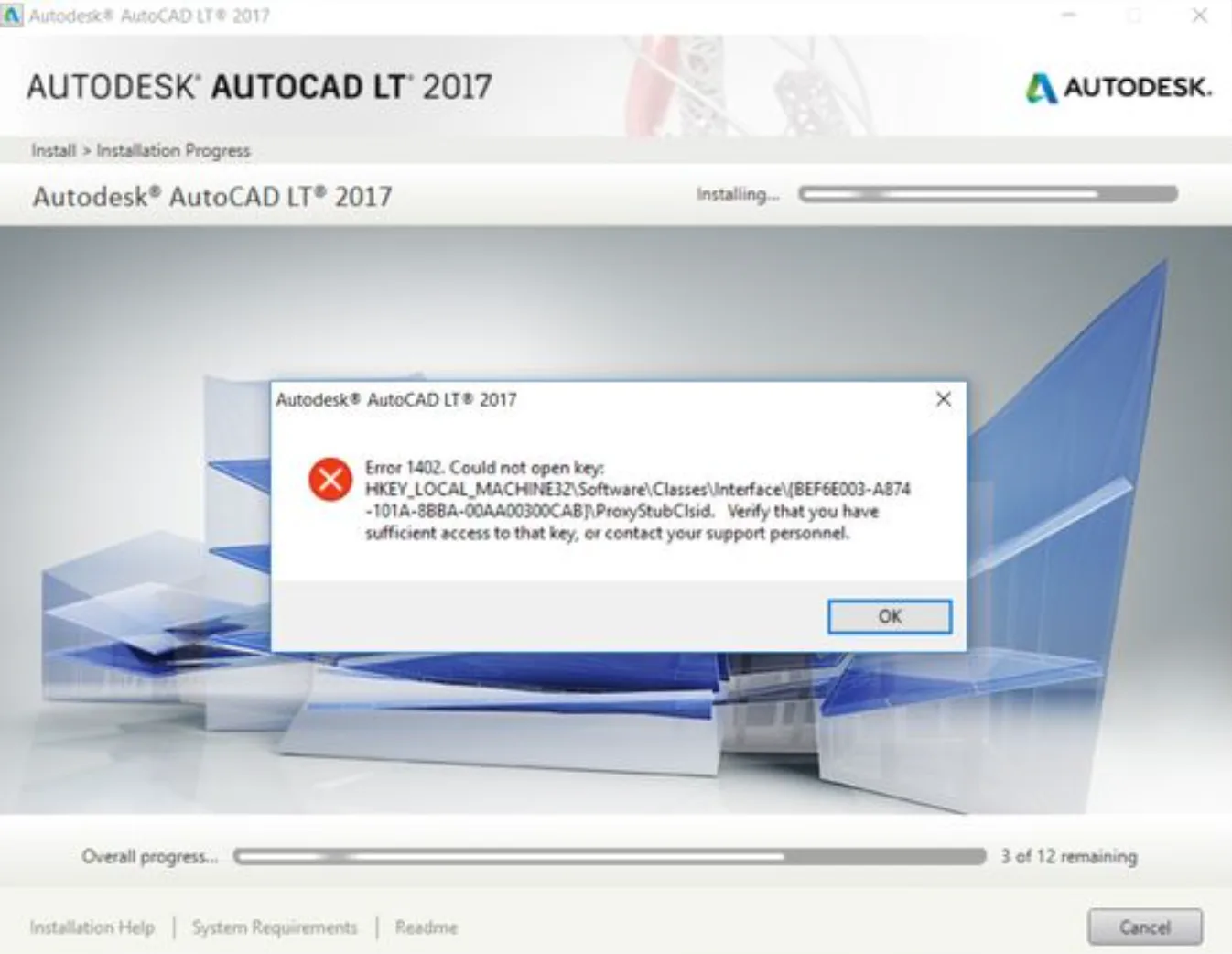
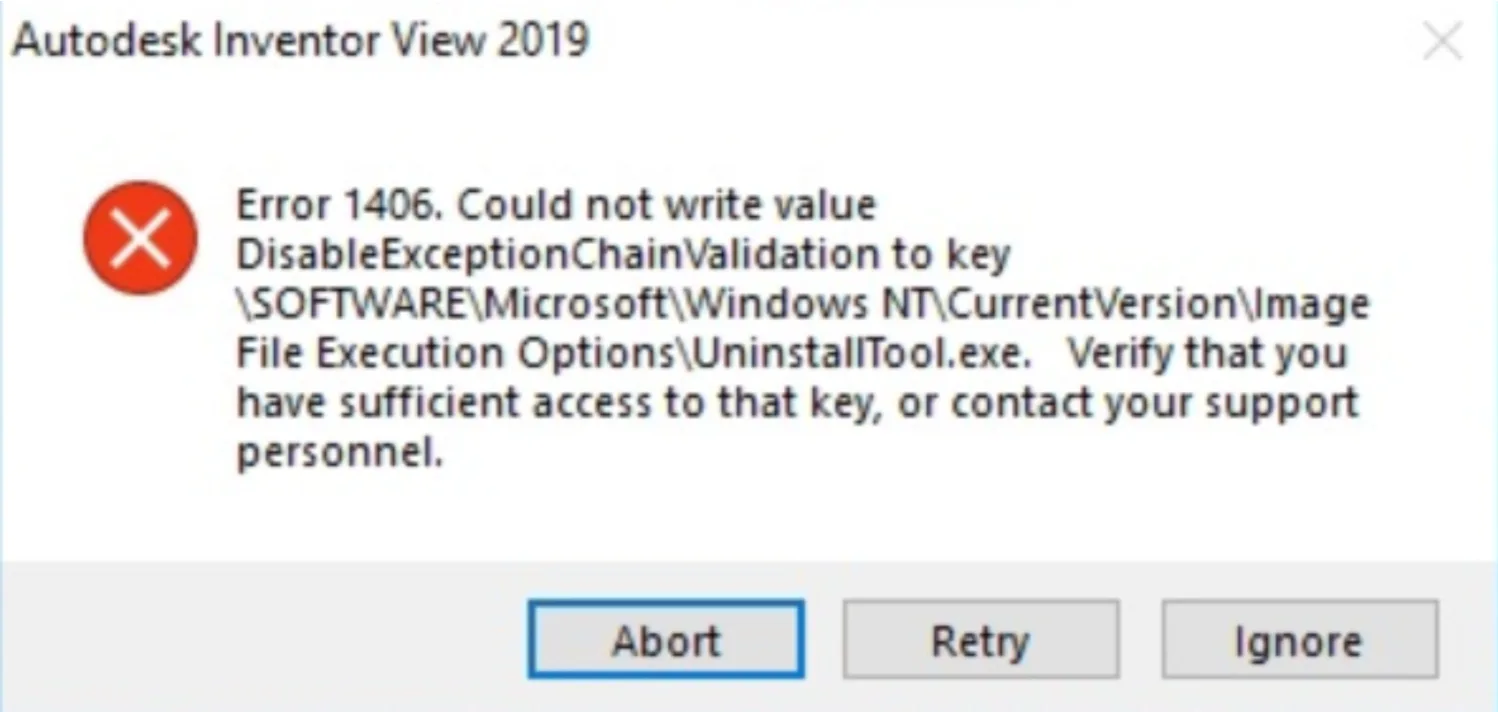
During the installation of Autodesk CAD products, the installation fails with error messages similar to:
- -
Error 1402: Could not open key: <some registry key>. Verify that you have sufficient access to that key, or contact your support personnel. - Error 1402.Could not open key:HKEY.LOCAL.MACHINE32\Software\ClassesVinterface\/BEF6EO03-AB74-101A-88BA-00AA00300CABpPronyStubClsid. Verily that you harvesufficient access to that key,or contact your support personnel.
- -
Error 1406: Could not write value <some value> to key <some registry key>. Verify that you have sufficient access to that key, or contact your support personnel. - Error 1406. Could not write valueDisableExceptionChainValidation to key\SOFTWAREVMicroSoft\Windows NTCurrentVersion\mageFile Execution Options\UninstallTool.exe. Verify that youthat key, or contact your supporthave sufficient access to fpersonnel.

Solusi
Follow these steps to repair the registry issues using the deepuninstaller software:
- download the deepuninstaller software.
- Launch deepuninstaller.
- In the deepuninstaller interface, click on Extended Options.
- Within the Extended Options section, locate and click Error 1402 1406.
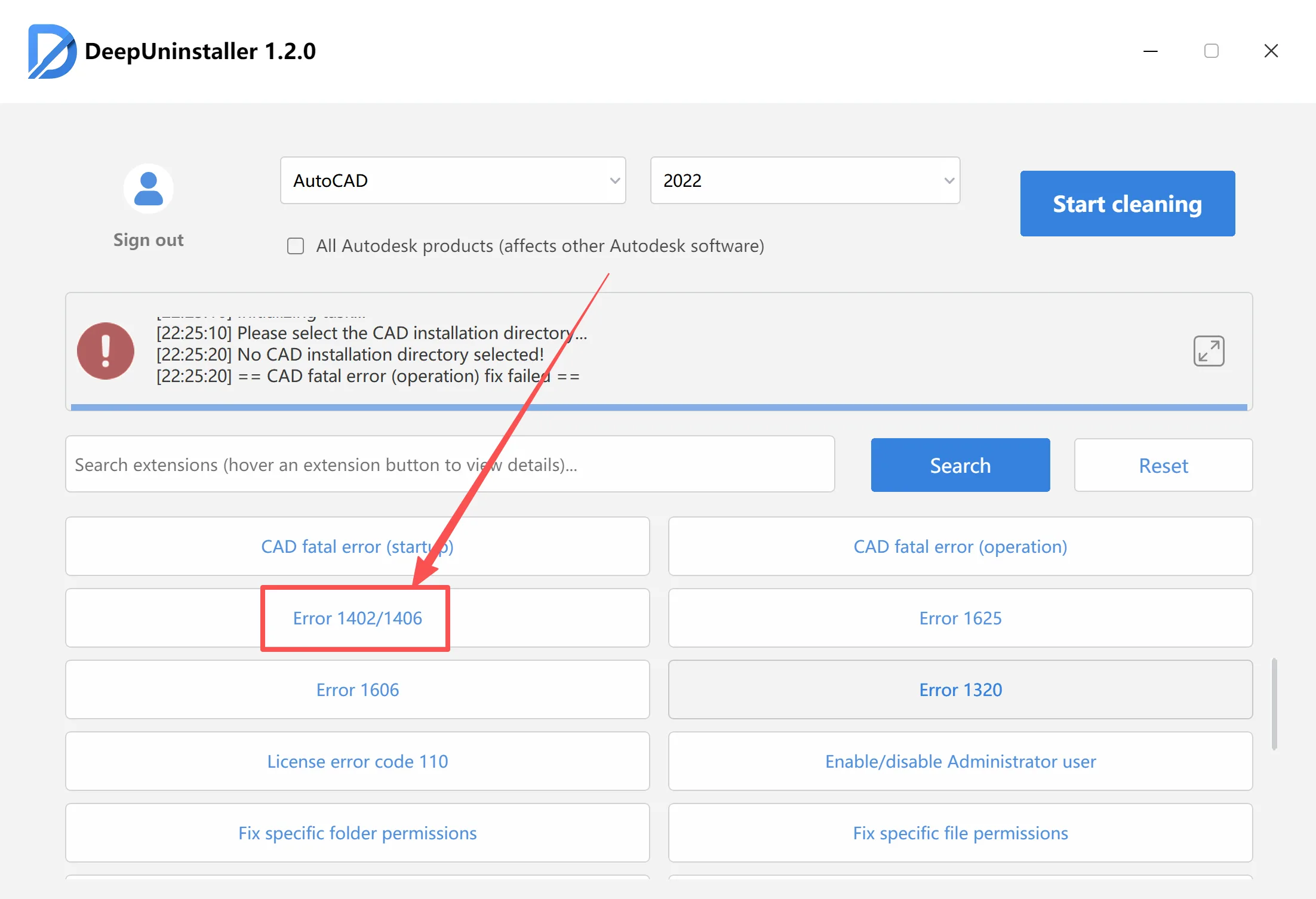
- Follow the software’s prompts to execute the repair operation. The deepuninstaller will automatically address the “unable to open the registry” problem.
- Once the repair is complete, cancel the current Autodesk CAD installation.
- Restart the installation process for your Autodesk CAD software.
Tinggalkan Balasan