 Hindi
Hindi  English
  Chinese
  Japanese
  Spanish
  French
  Arabic
  Bengali
  Russian
  Portuguese
  Indonesian
  Korean
  German
 Steps to Perform a Forced Installation
If you encounter Error 1603 in Autodesk products, particularly in versions 2020 and later, a forced installation attempt may resolve the issue.
- Download deepuninstaller. After downloading, launch the application.
- In deepuninstaller, navigate to the ‘Extensions’ section and click the ‘Force install’ button.
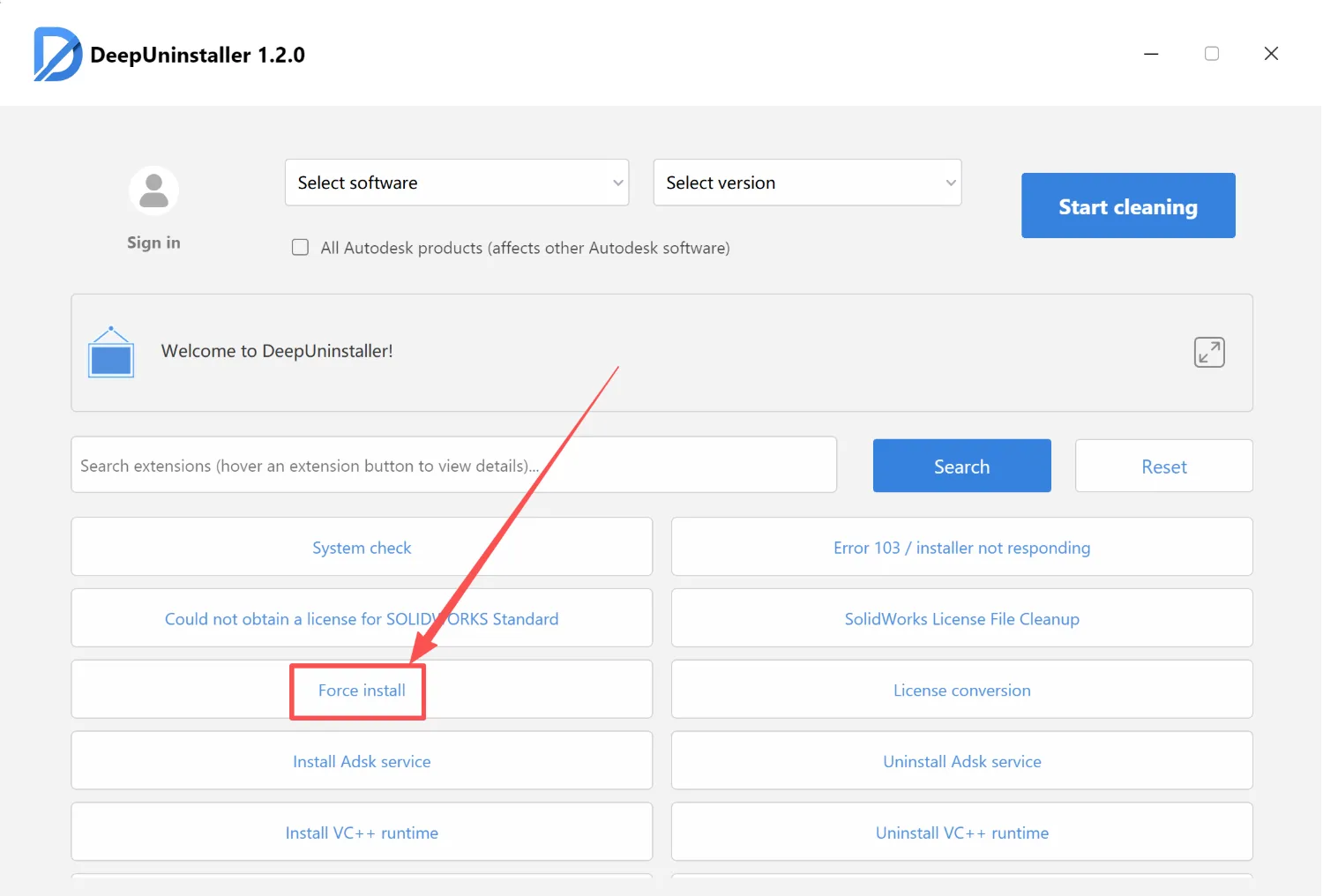
- Wait for the success confirmation. You can then proceed to reinstall your software.
Note: If Autodesk Service is Not Installed
If you receive a prompt indicating that the Autodesk Service (Adsk Service) is not installed, follow these steps:
- Locate the Extensions feature in the lower-left corner of the software, or navigate to the Autodesk Service download page.
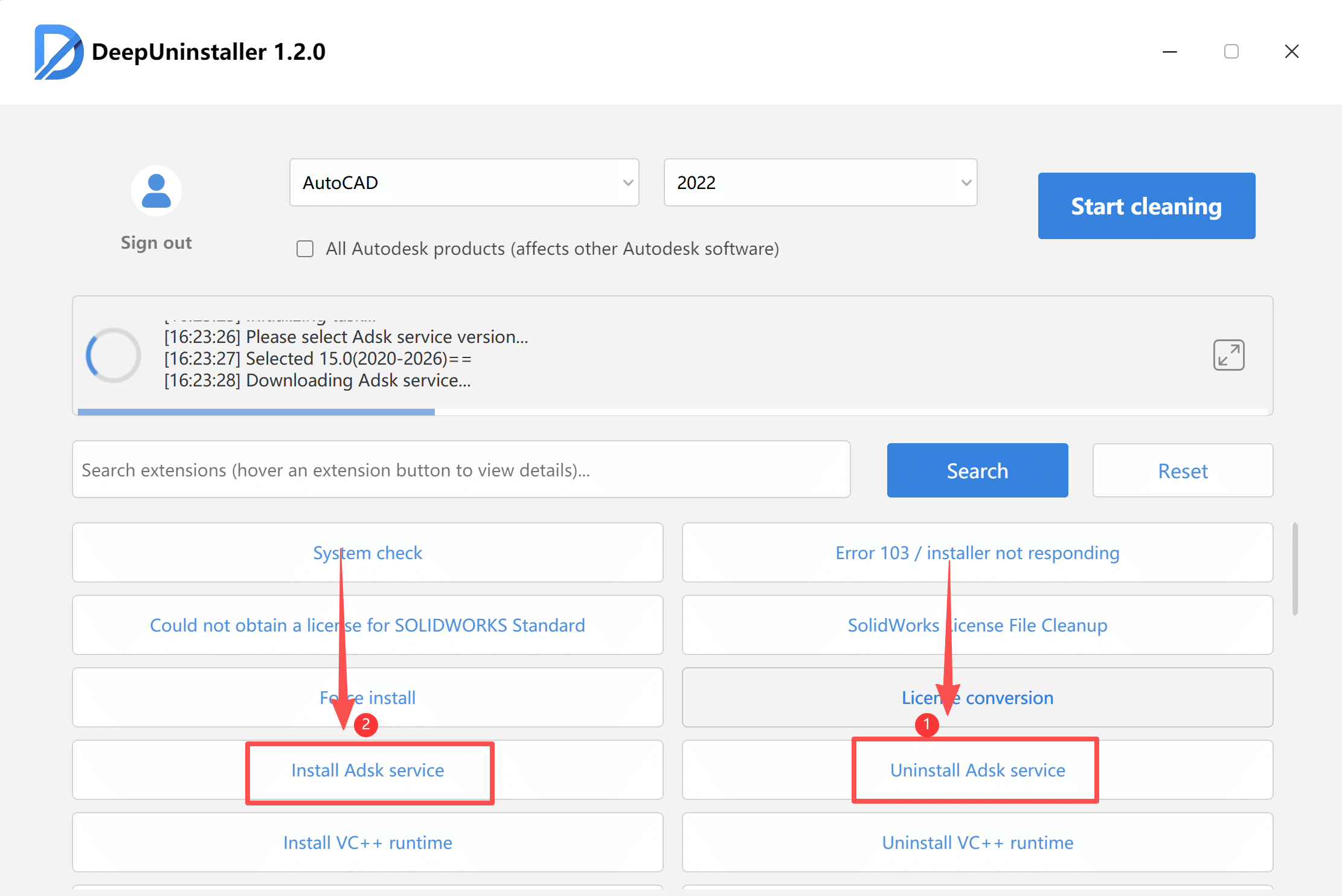
- On the Autodesk Service download page, select and download the appropriate installation package based on your CAD product version and specific requirements.
- After the Autodesk Service installation is complete, return to the deepuninstaller application and click the ‘Force’ button again.
- Copy any necessary activation files to the software’s installation directory. If you encounter licensing errors, reset your CAD settings.
If these steps do not resolve the issue, contact Autodesk Support.
प्रातिक्रिया दे