 English
  Chinese
  Japanese
  Hindi
Hindi  Spanish
  French
  Arabic
  Bengali
  Russian
  Portuguese
  Indonesian
  Korean
  German
 Applies to:
AutoCAD and other Autodesk products (versions 2020 and later)
Issue
During installation or reinstallation of Autodesk software, the setup process may fail with Error 1603.
This error is commonly associated with issues in the installer environment, such as corrupted installer components or missing Autodesk background services.

Resolution
To resolve this issue, follow the steps below:
Step 1: Run Force Install
- Launch DeepUninstaller.
- Click Force Install directly. Product or version selection is not required for this operation.
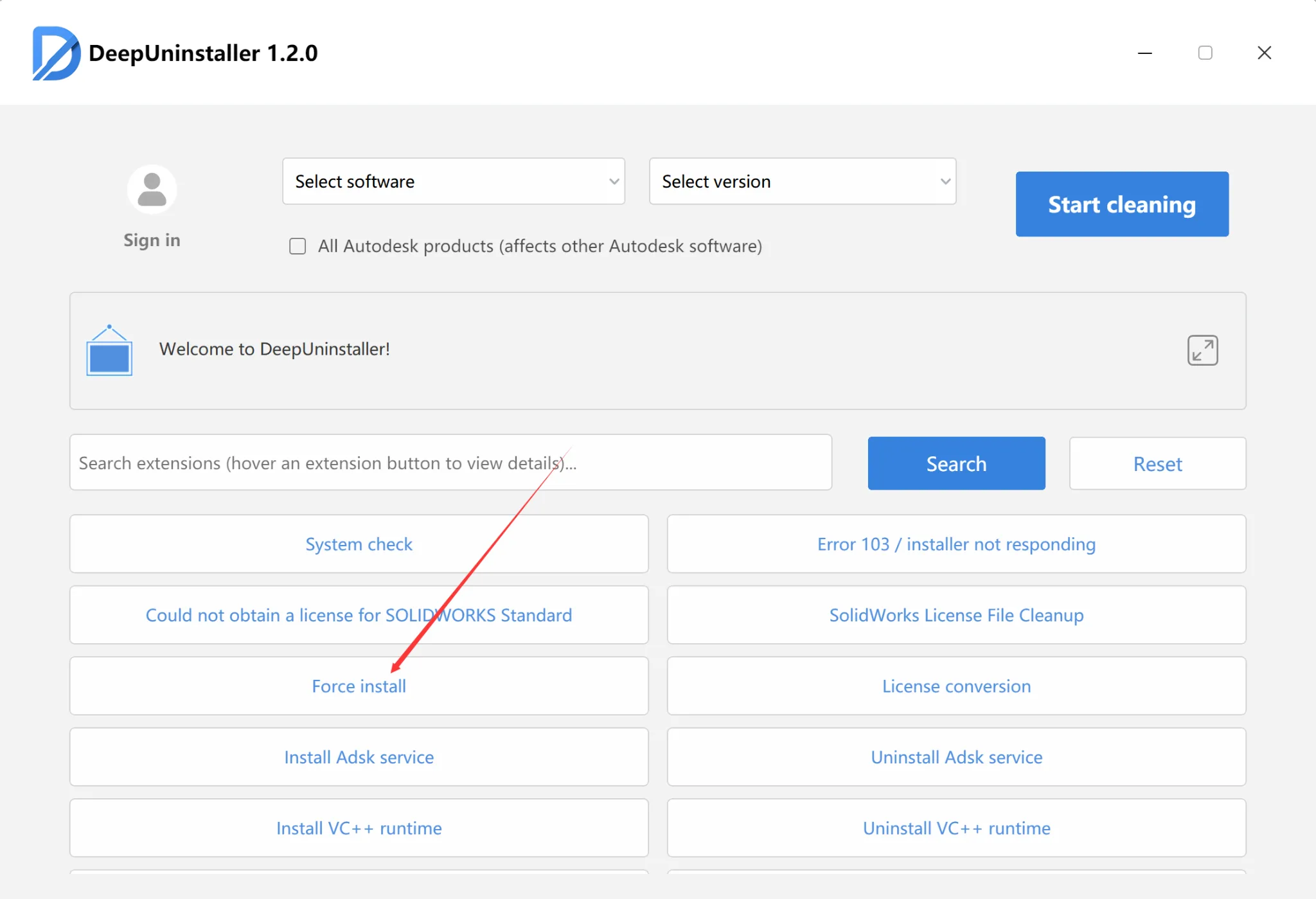
- Wait until the process completes successfully.
This step repairs installer-related components that may prevent Autodesk products from installing correctly.
Step 2: Install ADSK Service (If Required)
If you receive a notification indicating that the ADSK Service is not installed, proceed as follows:
- Click Install ADSK Service.
- Select a compatible service version corresponding to the affected Autodesk product range (for example, Autodesk 2020–2026).
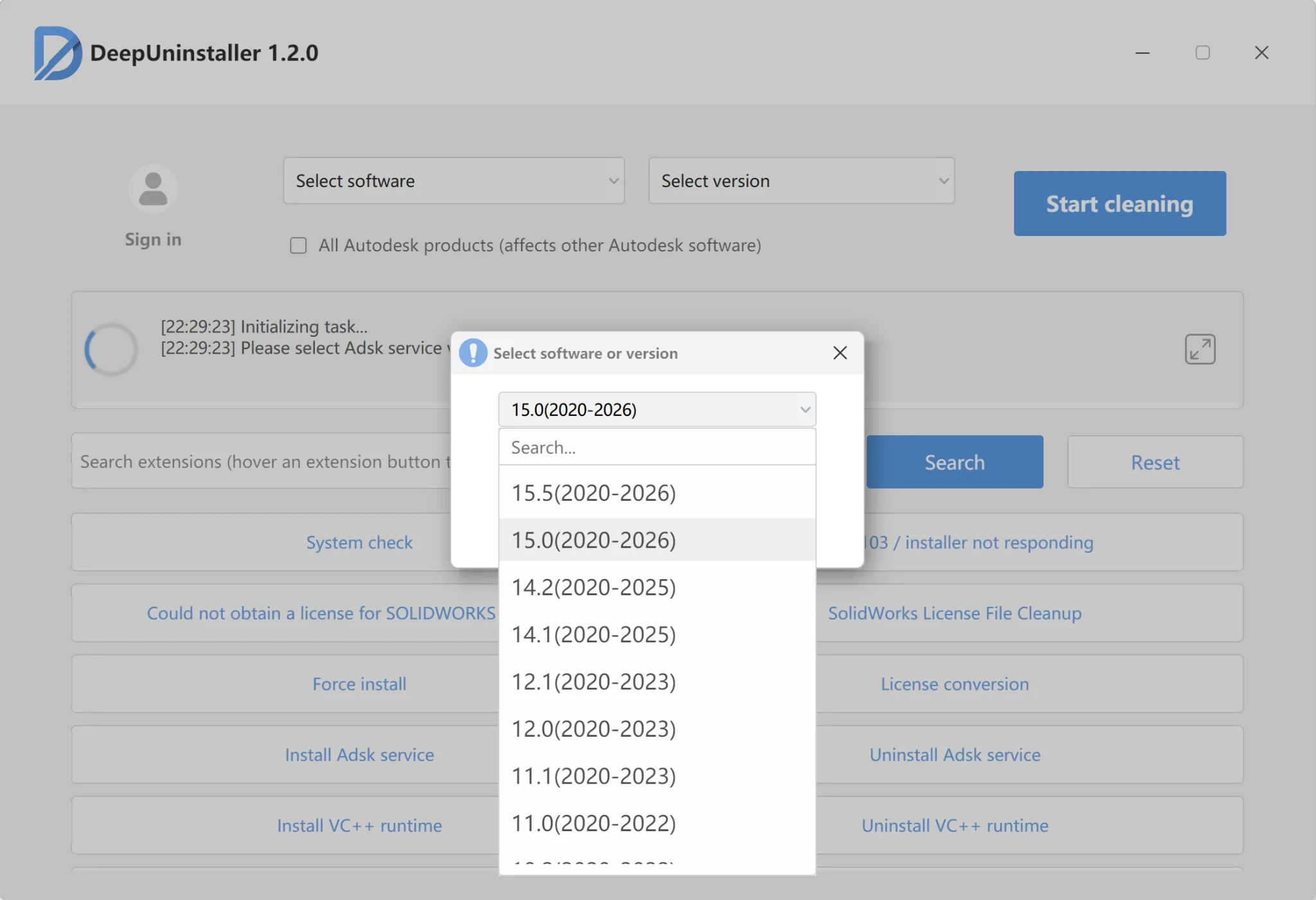
- Complete the installation.
Step 3: Retry Force Install
After the ADSK Service installation finishes, run Force Install again to finalize the repair.
Result
After completing these steps, the Autodesk installer environment is typically restored, allowing AutoCAD to be installed successfully without Error 1603.
Notes
- This process does not modify license files or activation data.
- No changes are made to Autodesk product licensing or authentication mechanisms.
- Autodesk and AutoCAD are trademarks of Autodesk, Inc.
- DeepUninstaller is an independent third-party utility and is not affiliated with or endorsed by Autodesk.
Leave a Reply