 English
  Chinese
  Japanese
  Hindi
Hindi  Spanish
  French
  Arabic
  Bengali
  Russian
  Portuguese
  Indonesian
  Korean
  German
 Issue:
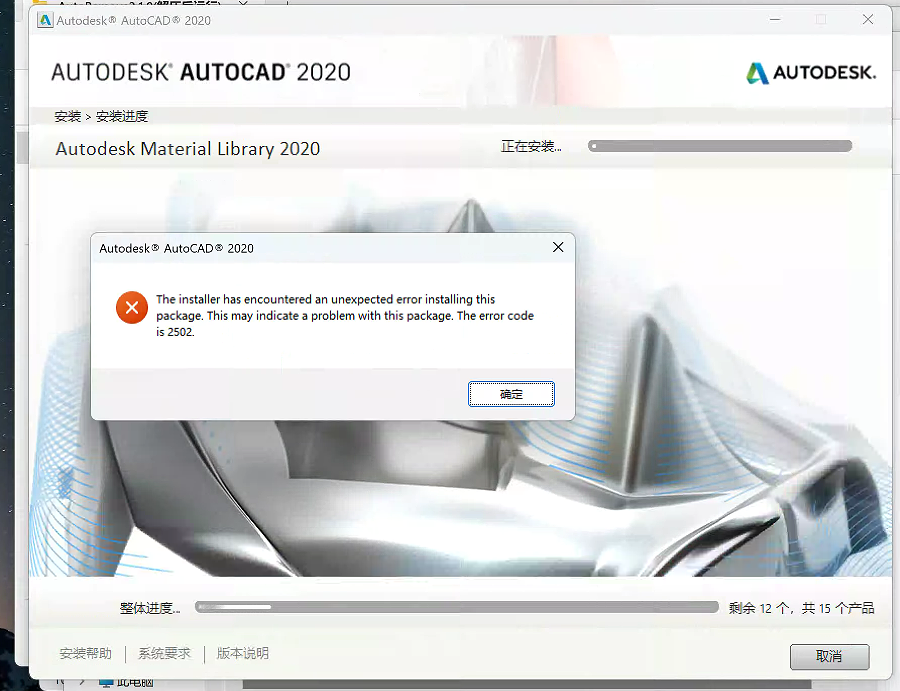
When attempting to install, uninstall, or launch an Autodesk product, one or both of the following errors appear:
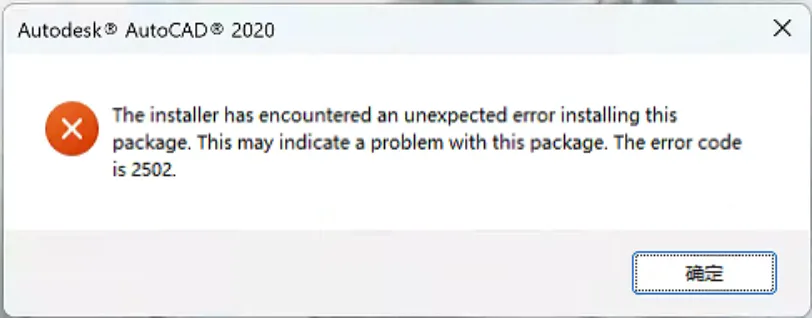
- Error 2502
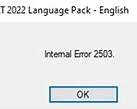
- Error 2503
Causes
- Incorrectly configured or missing temporary folder paths in system environment variables.
- Insufficient permissions for the system’s temporary folders.
- Antivirus software interfering with the installation or uninstallation process.
Solution
Perform the following steps to resolve Error 2503 and 2502:
Verify and Reset Temporary Folder Paths
- Open System Environment Variables.
- Check for the existence and correctness of temporary paths.
- If the paths are incorrect or missing, reset them to their default values:
- For user-specific temporary paths:
%USERPROFILE%\AppData\Local\Temp - For system-wide temporary paths:
%SystemRoot%\TEMP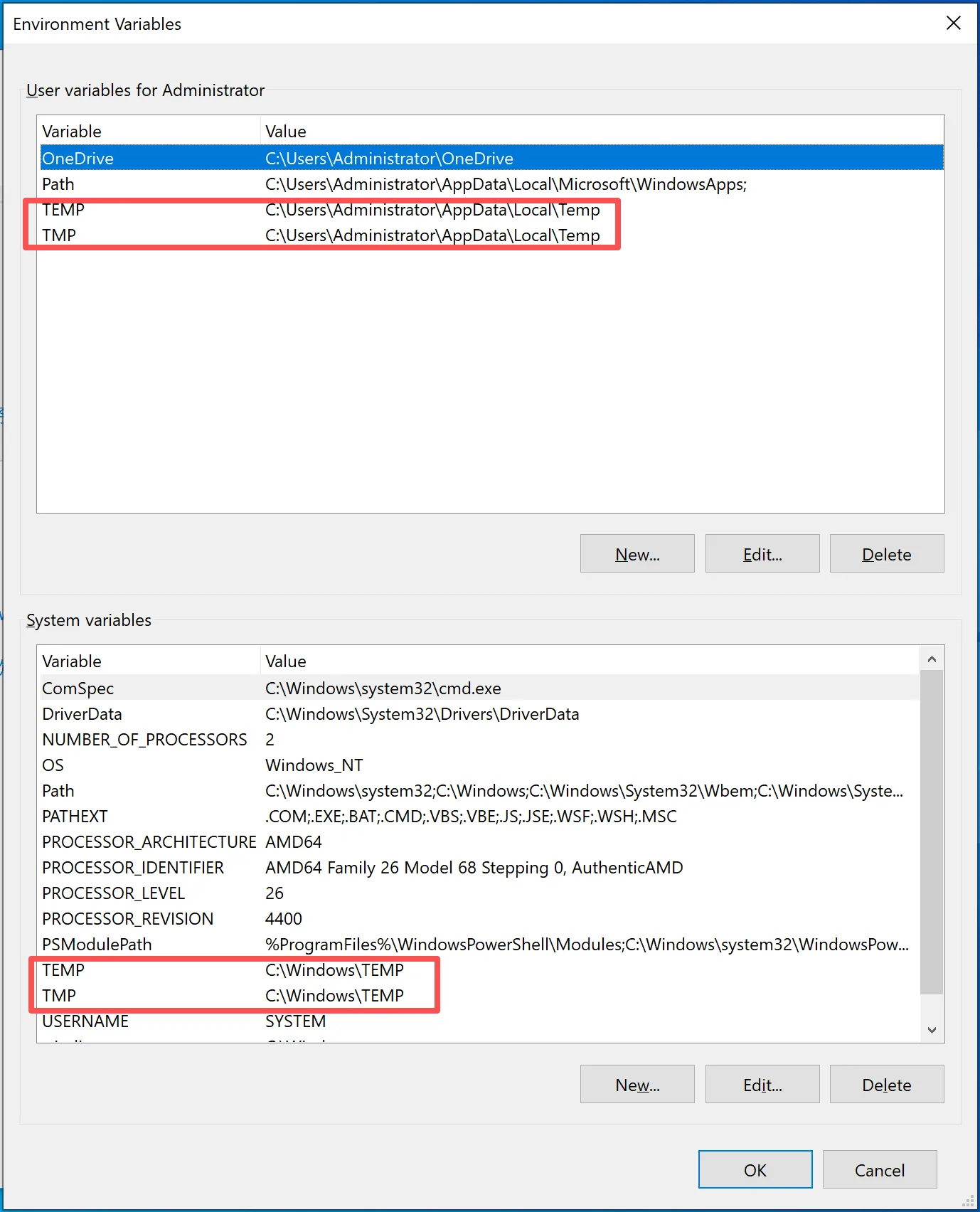
- For user-specific temporary paths:
Grant Permissions to Temporary Folders
Ensure that the system’s temporary directories have the correct permissions.
- Press
WIN + Rto open the Run dialog. - Type
%temp%and pressEnter. This will open your user’s temporary folder. - Copy the full path of the folder that opens.
- Open deepuninstaller.
- Navigate to the Extended Functions section.
- Select the option to Fix specific folder permissions (or similar).
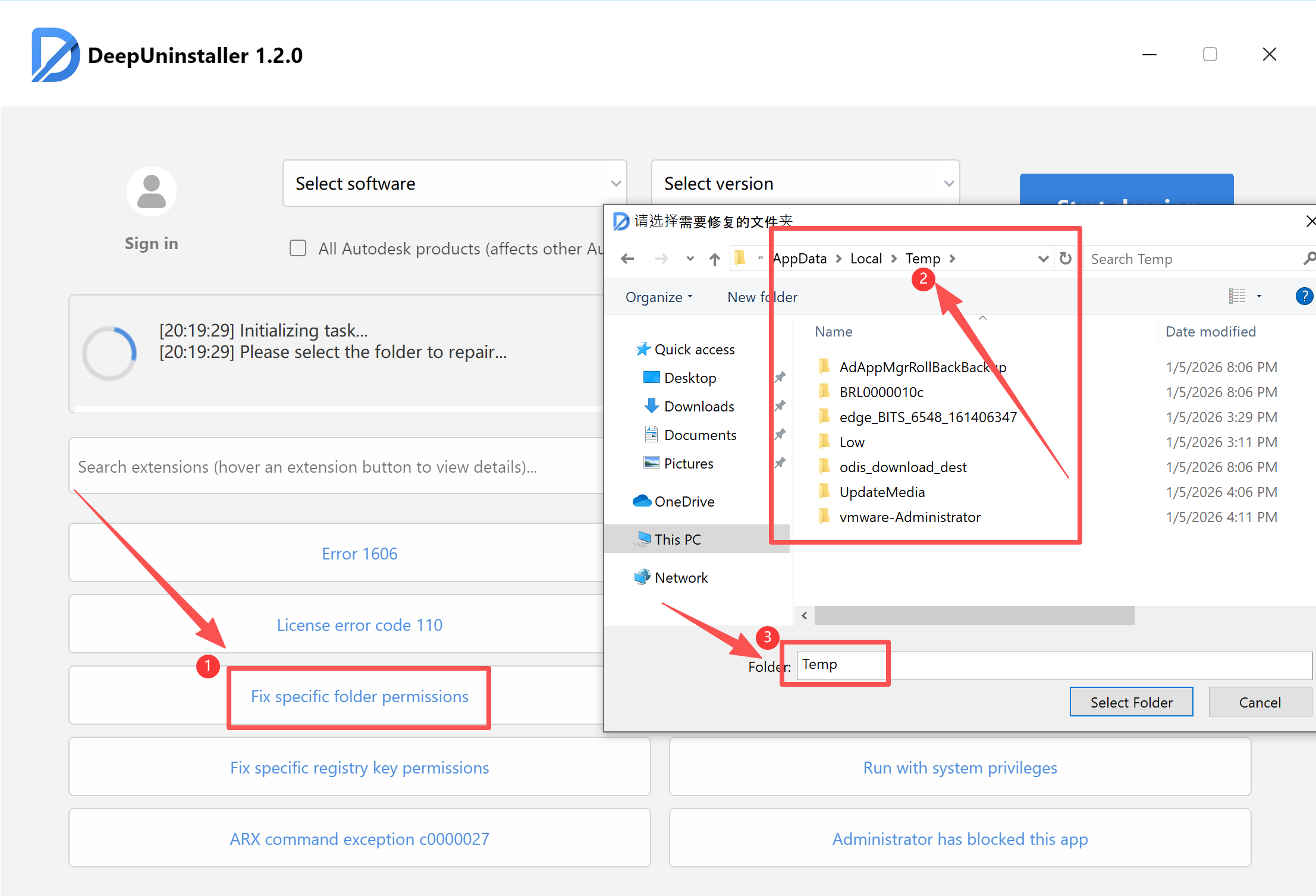
- Paste the path copied in Step 3 into the designated field. Press
Enterto ensure the directory is registered or selected within the tool. - Repeat the permission granting process for the system-wide temporary directory:
C:\Windows\Temp.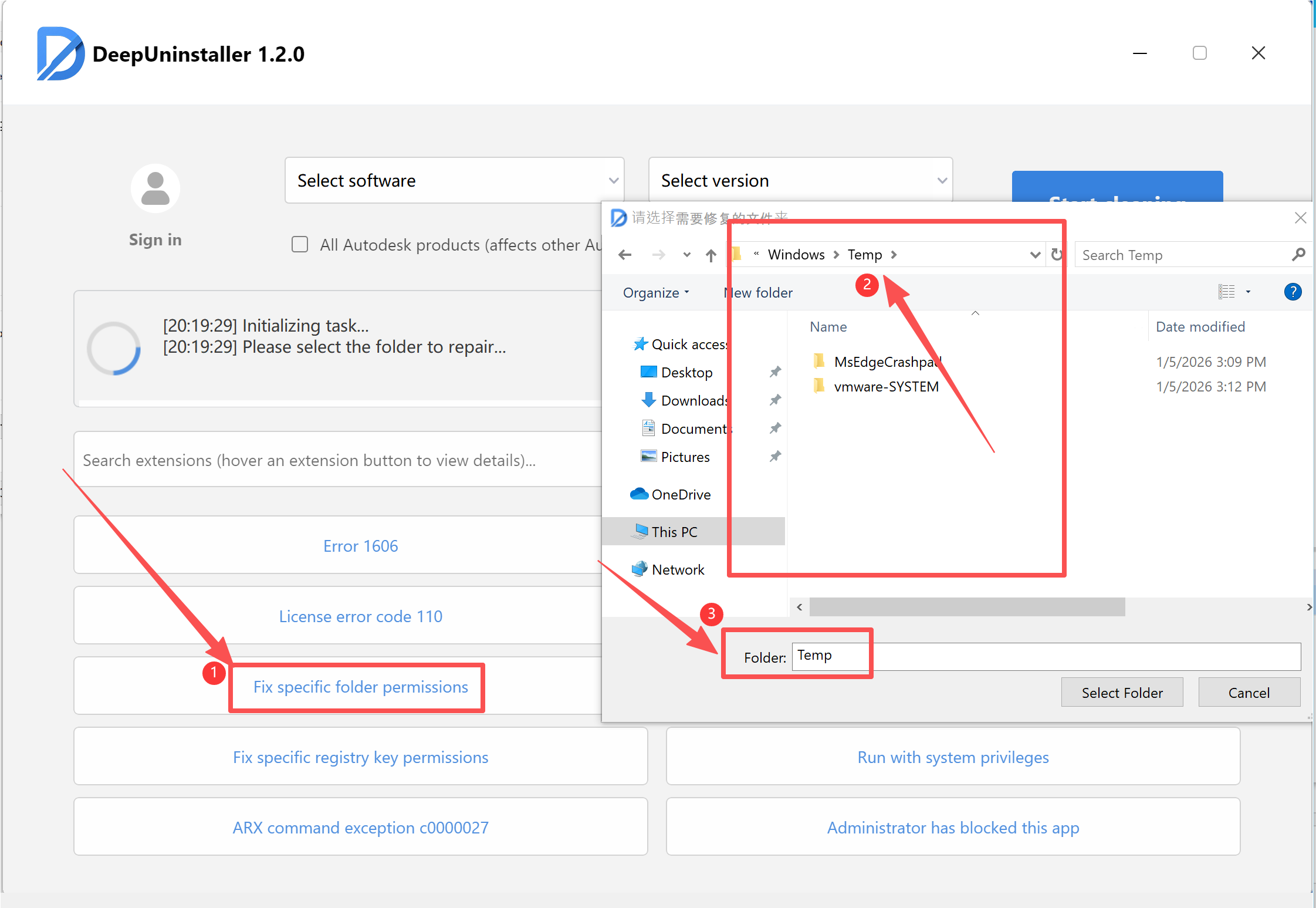
- After successfully granting permissions, attempt to reinstall the Autodesk software.
Check Antivirus Software
Antivirus software can sometimes block critical operations during installation or uninstallation.
- If the issue persists, temporarily disable your antivirus software.
- Check your antivirus software’s custom protection settings (e.g., custom rules, real-time protection, or application control) to see if any Autodesk processes or installers are being blocked.
- If any blocking rules are found, disable them or add exceptions for Autodesk components.
- After adjusting antivirus settings, restart your computer and attempt the installation or uninstallation again.
Reinstall with Elevated Permissions
- In deepuninstaller (or through system settings), look for an option related to “Administrator has blocked this app” or similar, and disable it if present.
- Restart your computer.
- Within deepuninstaller (or by running the installer directly), use an option Run with system privileges to install the software with system (sys) permissions or “Run as administrator.”
- Attempt to install the Autodesk software again.
Leave a Reply