 English
  Chinese
  Japanese
  Hindi
Hindi  Spanish
  French
  Arabic
  Bengali
  Russian
  Portuguese
  Indonesian
  Korean
  German
 Issue:
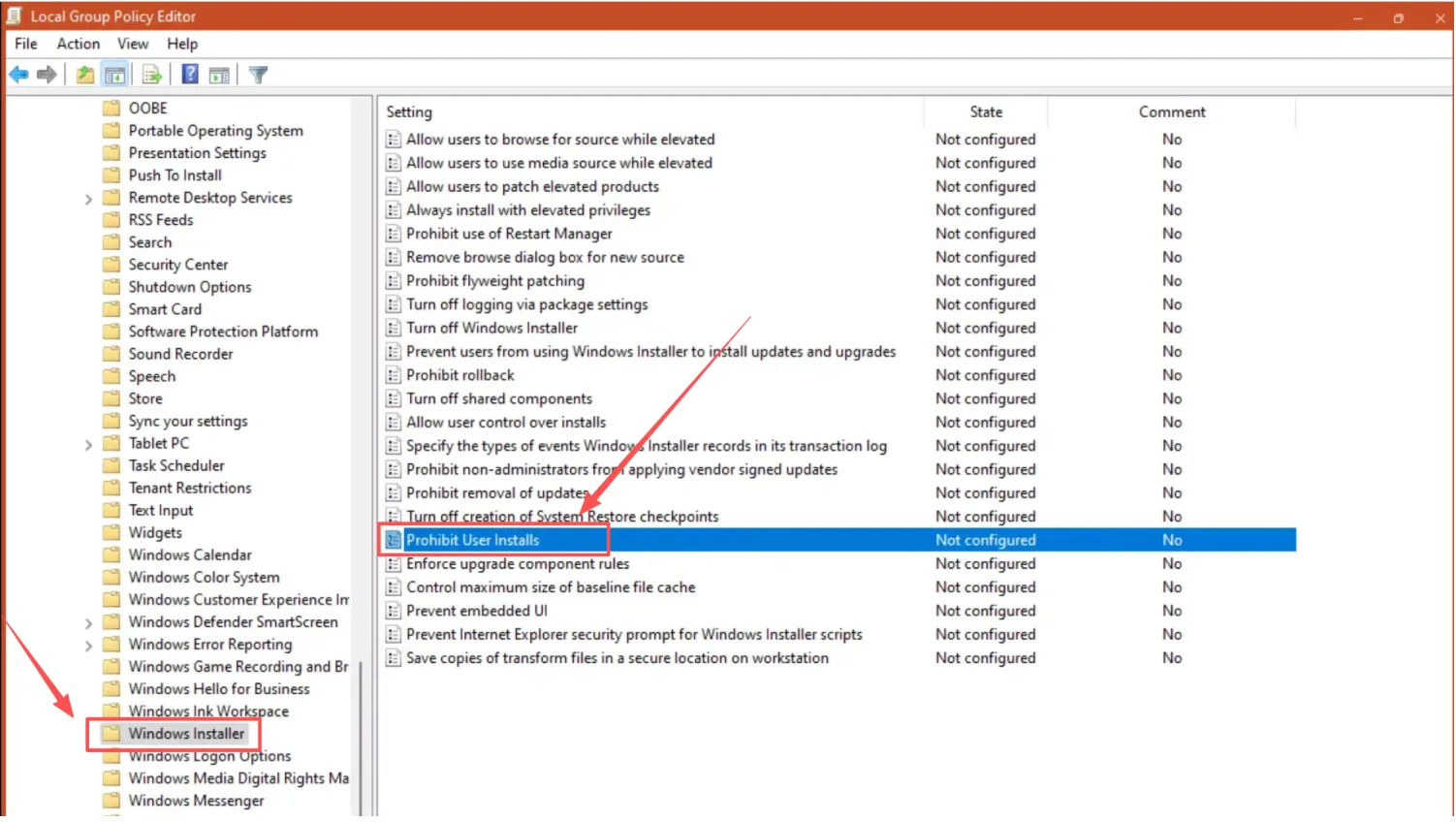
To resolve AutoCAD 2022 installation error 1603 that may be accompanied by Event Viewer error 1934, modify the Group Policy settings:
- On the Start menu, type
gpedit.mscin the search box and press Enter to open the Local Group Policy Editor. - In the Local Group Policy Editor, navigate to the following path:
Computer Configuration > Administrative Templates > Windows Components > Windows Installer - Double-click the “Prohibit User Installs” setting.
- Select “Disabled”.
- Click OK.
Additional Information
After applying these changes, it is recommended to restart your system to ensure all Group Policy modifications are fully enacted before attempting the AutoCAD installation again. This can help prevent any residual conflicts.
Why does this error occur?
Error 1603 often indicates a general Windows Installer issue, while Event Viewer error 1934 specifically points to problems with Windows Installer not being able to apply a transform (a file used to customize an MSI package). Group Policy settings, particularly those related to user software installations, can sometimes interfere with the installer’s ability to write necessary files or registry entries. Disabling “Prohibit User Installs” allows the system sufficient permissions to complete the installation process.
Leave a Reply