 English
  Chinese
  Japanese
  Hindi
Hindi  Spanish
  French
  Arabic
  Bengali
  Russian
  Portuguese
  Indonesian
  Korean
  German
 Issue:
When launching Autodesk Inventor 2021 (or other Autodesk software), you may encounter one of the following error messages:
Image Placeholder (Depicting the “Inventor cannot access your license” dialog)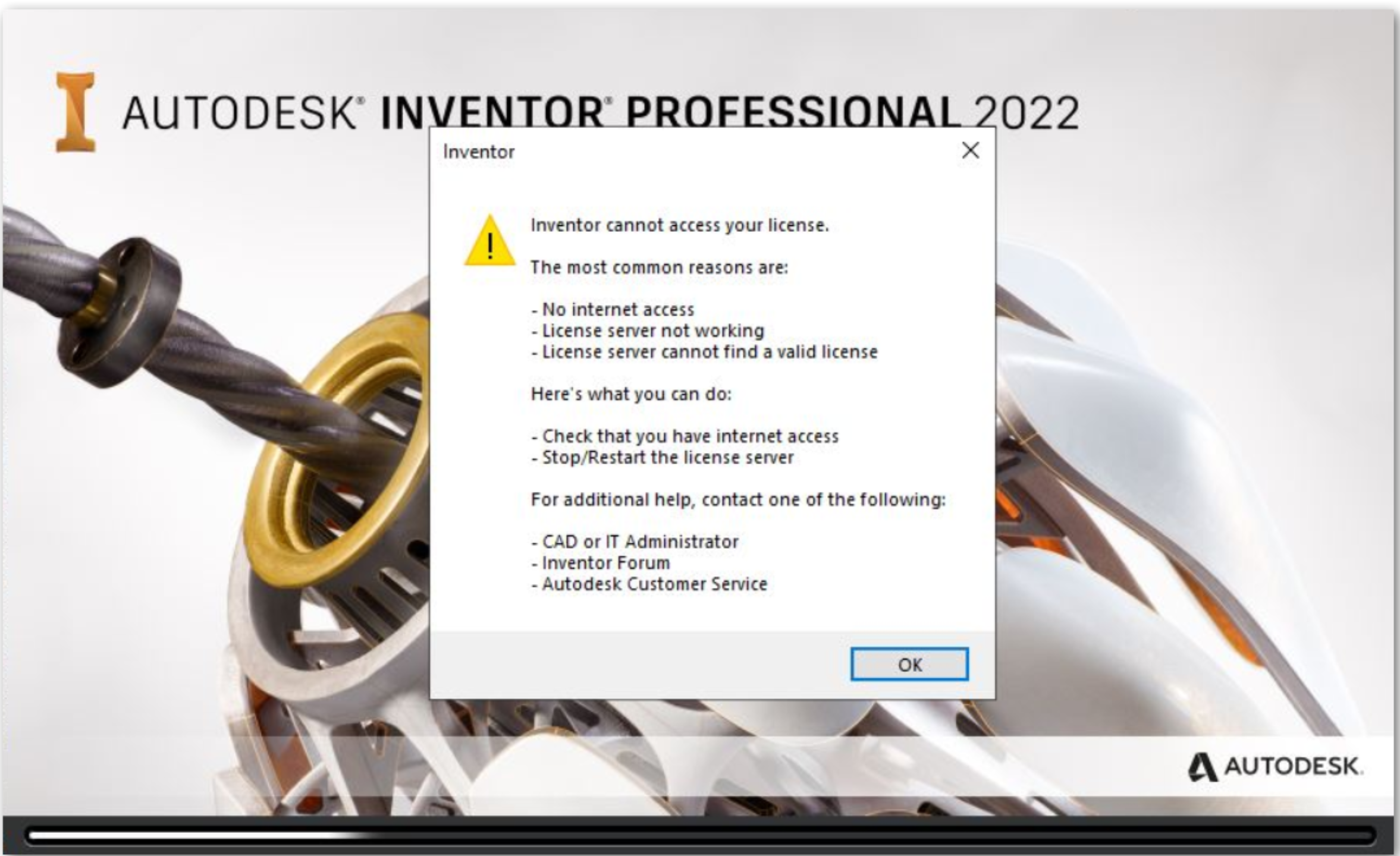
- “Inventor cannot access your license.”
Image Placeholder (Depicting the “Network license unavailable” dialog with Error [-96.7.11001])
- Inventor cannot access your license.The most common reasons are:
- -No internet access
- -License server not working- License server cannot find a valid license
- Here’s what you can do:
- Check that you have internet access-Stop/Restart the license server
For additional help, contact one of the following: - CAD or IT Administrator
-Inventor Forum
-Autodesk Customer Service - Common reasons:
- All licenses are currently in use.
- The server is shut down.
- The license has expired.
- Please contact your system administrator or support staff.
- Error [-96.7.11001]
Cause
The licensing system is unable to validate or connect to an available license, often due to network issues, license server problems, or service malfunctions.
Solution
This solution assumes your Autodesk software has already been activated.
1. Re-register License Services using deepuninstaller
- Open the deepuninstaller .
- Click “License conversion” button
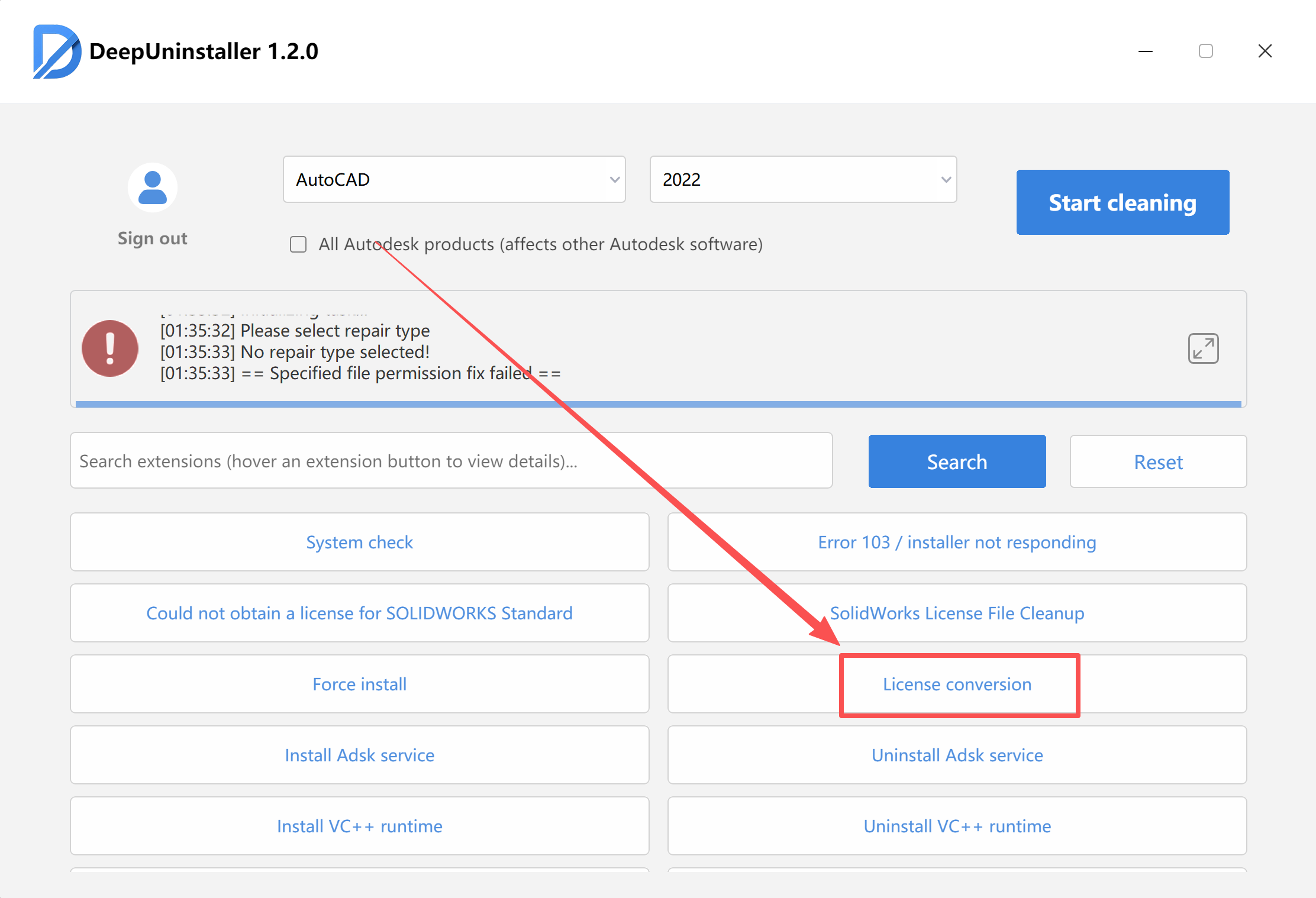
- Select the problematic software and its version from the options.
- Click Start Conversion.
- A success message should appear upon completion.
2. Troubleshoot Conversion Failure
If the conversion process fails, it might be due to a required service not being started or missing.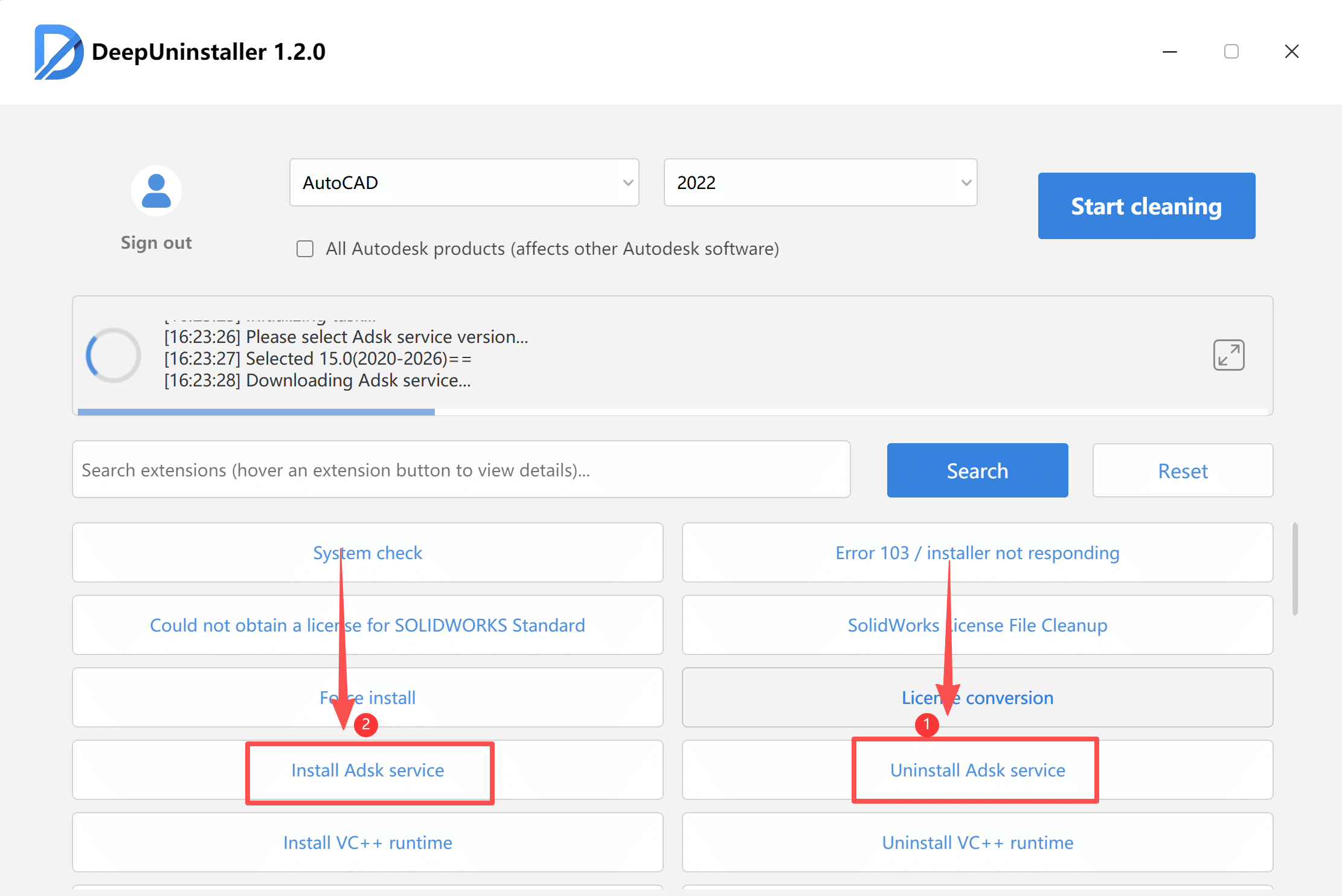
- After installation, open Windows Services (type
services.mscin the Run dialog) and verify that the corresponding Autodesk service is running.Image Placeholder (Depicting checking service status in Windows Services) - Once the service is confirmed to be active, attempt the deepuninstaller conversion process again.
3. Disable Firewall Settings
If the Autodesk service starts normally but the conversion remains stuck or fails, temporarily disable your firewall settings. This may involve disabling up to two firewall-related settings.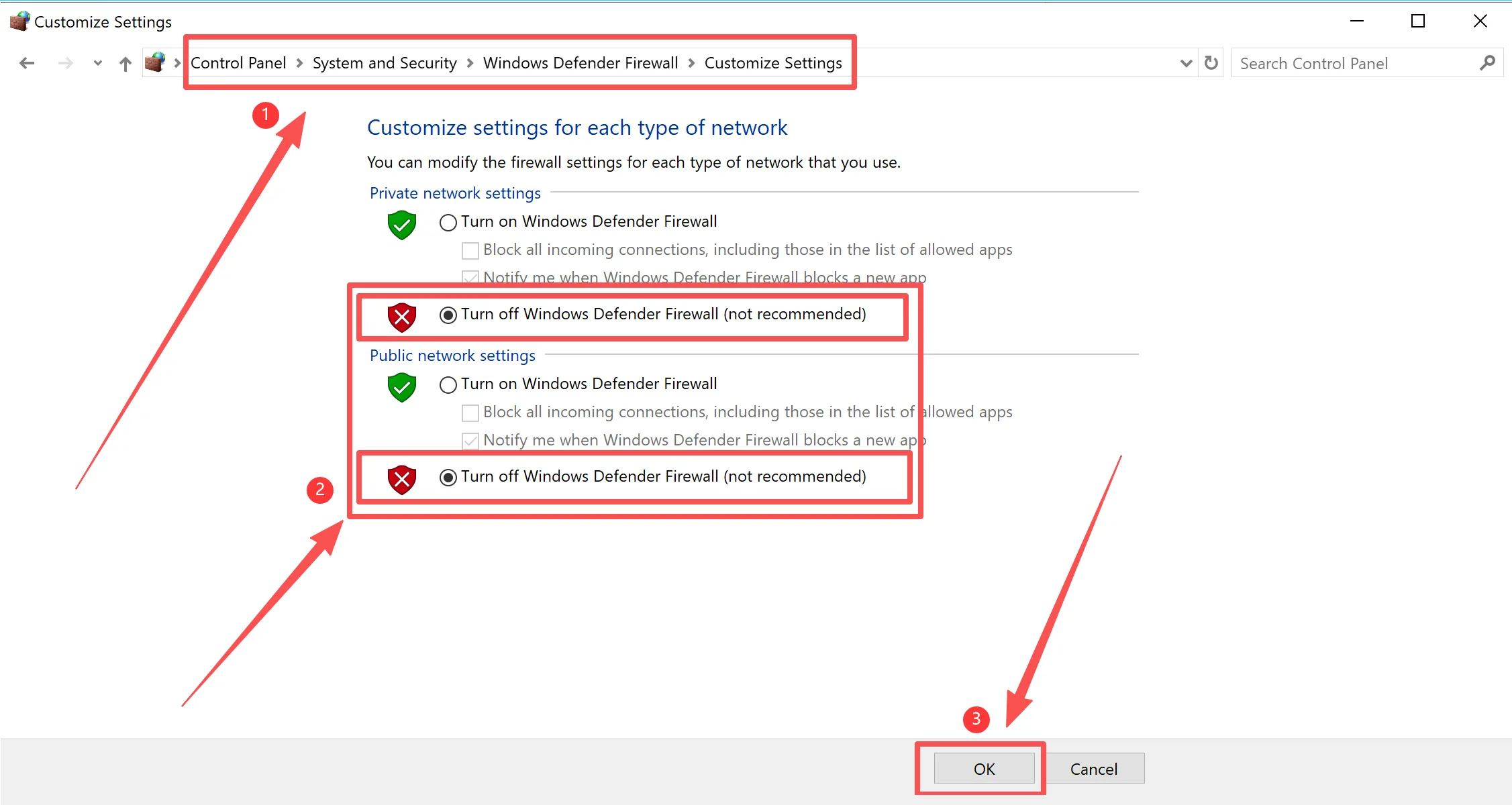
Leave a Reply