 English
  Chinese
  Japanese
  Hindi
Hindi  Spanish
  French
  Arabic
  Bengali
  Russian
  Portuguese
  Indonesian
  Korean
  German
 Issue:
During the installation of Autodesk software, the following error messages may appear, indicating an incomplete installation where some products or the Autodesk Licensing Service (ADLS) could not be installed:
- “Installation incomplete. Some products could not be installed.”
- “Autodesk Licensing not installed (Error codes: 3279xx or 3280xx)”
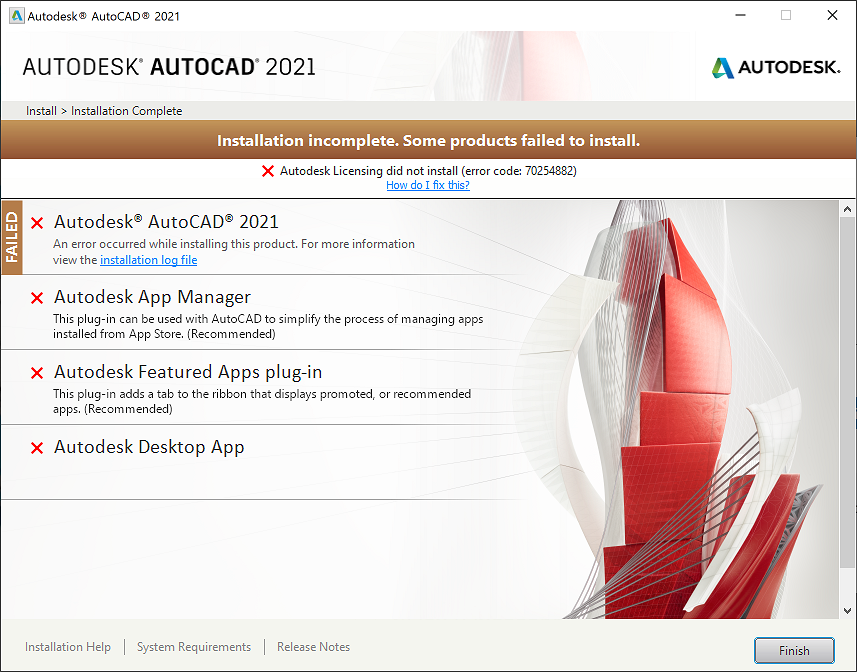
The issue is typically accompanied by one or more of the following specific error codes:
- 327691
- 327948
- 327949
- 327960
- 327962
- 327963
- 327969
- 327970
- 327980
- 327990
- 328010
- 328020
Cause
The primary cause is insufficient permissions to install the Windows service “Autodesk Desktop Licensing Service” (ADLS).
Solution
To resolve insufficient permissions preventing the installation of the Autodesk Desktop Licensing Service (ADLS), follow these steps:
- Disable Antivirus and Security Software:Before proceeding, exit all antivirus software and any other applications that might interfere with the installation process
- Repair Folder Permissions using a Diagnostic Utility:Locate and use the “Fix specific folder permissions” function within your Autodesk diagnostic utility.
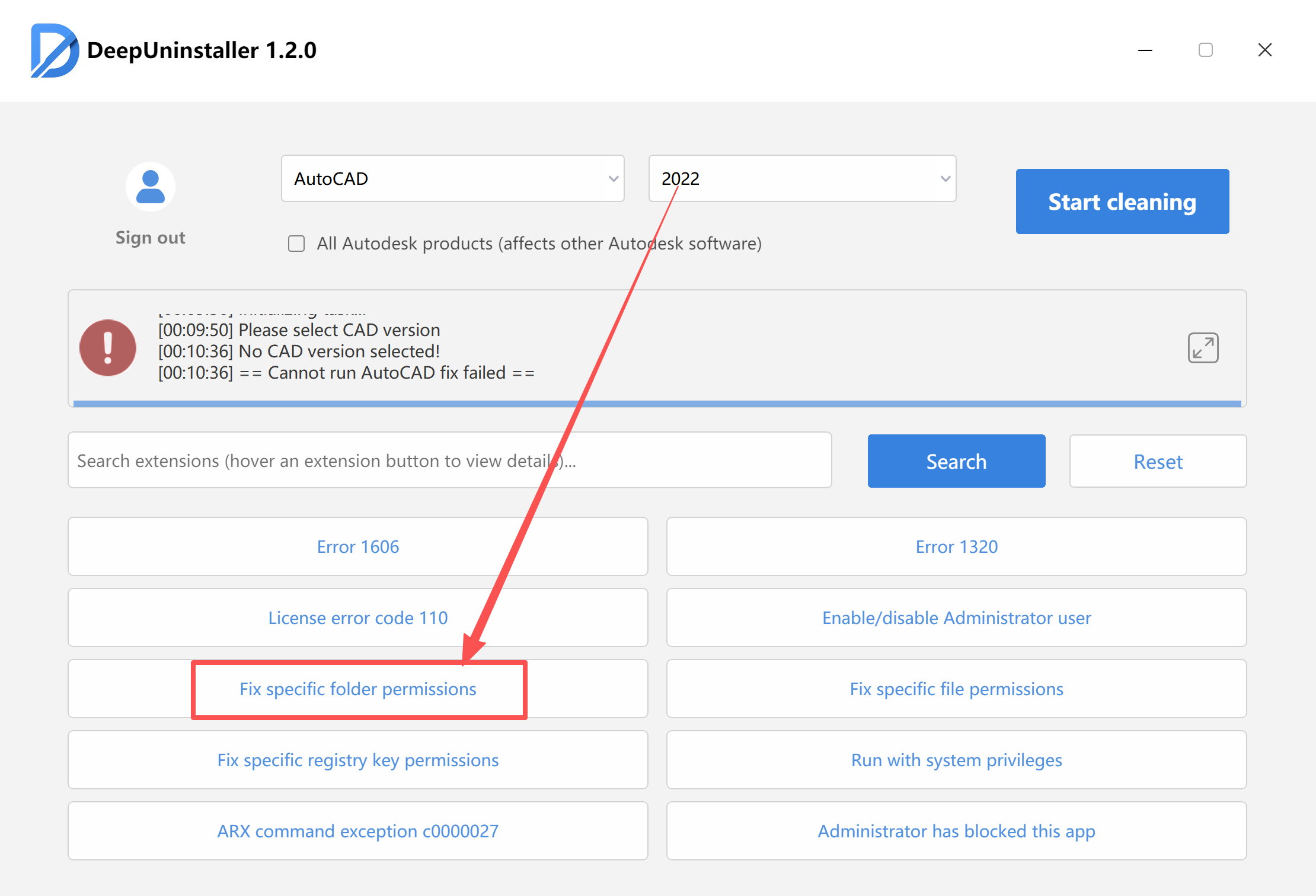
- Specify Licensing Service Directory:In the pop-up window of the diagnostic utility, navigate to the following directory:
C:\Program Files (x86)\Common Files\Autodesk Shared\AdskLicensingSelect this folder by clicking “Select Folder” - Uninstall ADSK Service:Within the diagnostic utility, click the “Uninstall ADSK Service” feature.
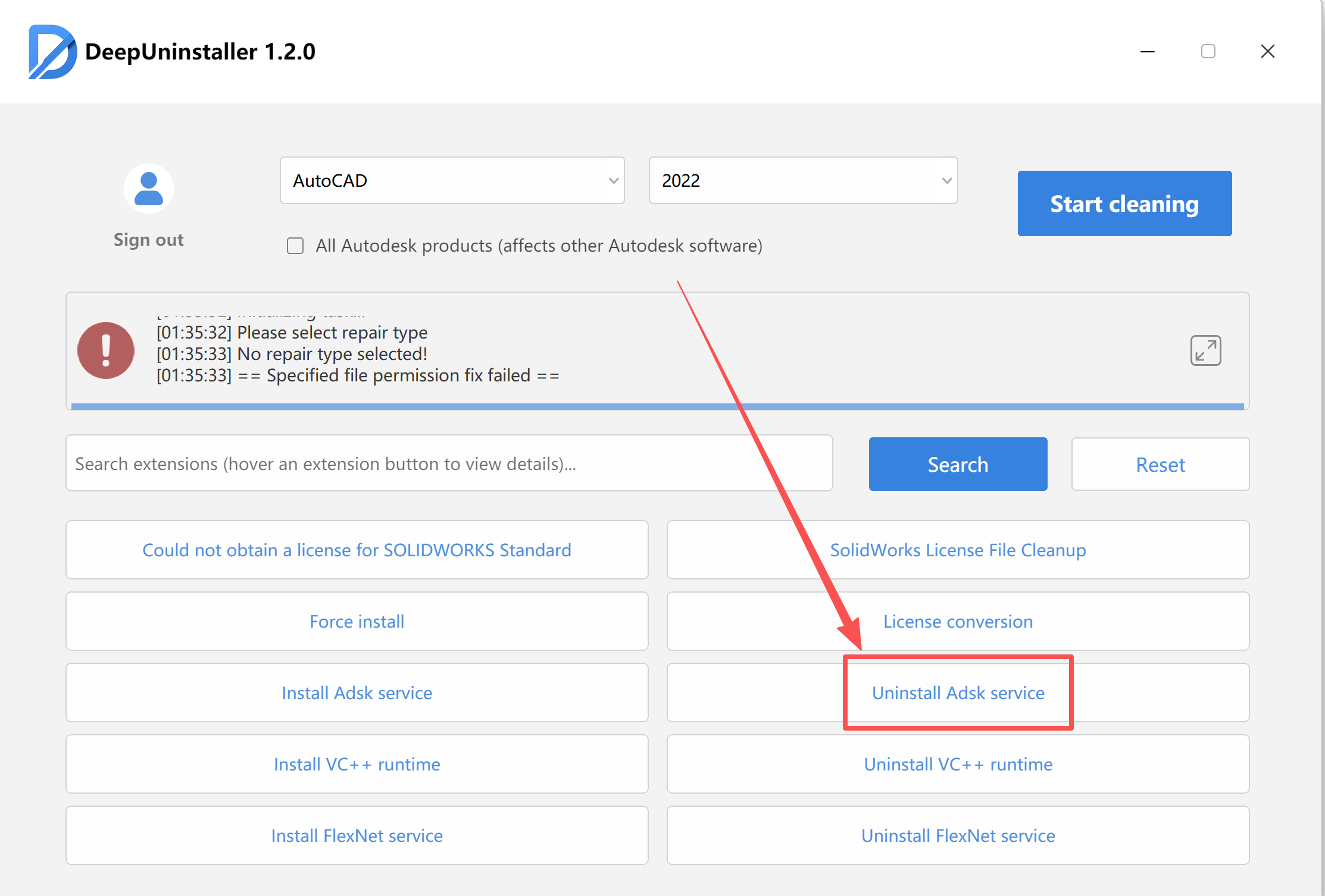
- Delete Remaining Files:After the uninstallation is complete, open the following path and manually delete all its contents:
C:\Program Files (x86)\Common Files\Autodesk Shared\AdskLicensing - Install ADSK Service:In the diagnostic utility, click the “Install ADSK Service” feature. Follow the on-screen tutorial to install the ADSK service corresponding to your Autodesk software version.
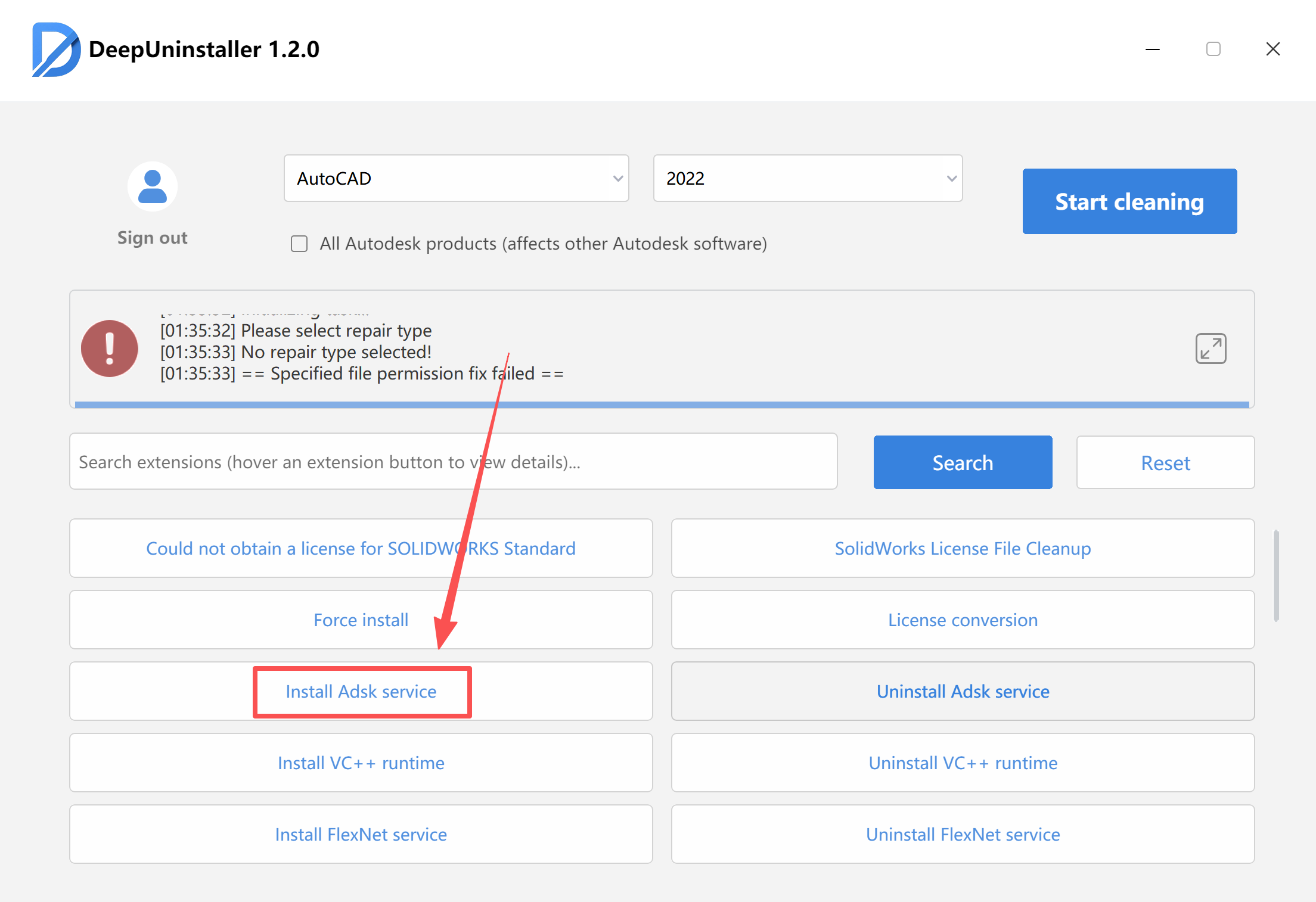
- Verify Service Status:Open Windows Services (type
services.mscin the Run dialog or search bar) and check if the “Autodesk Desktop Licensing Service” is running normally. If it is not running or not started, proceed to step 8.Image Placeholder - Attempt Alternative Service Version (If previous steps fail):If the service is still not installed correctly, repeat steps 4 and 5 (uninstall the service, delete folder contents). Then, install a different version of the ADSK service using the diagnostic utility (Step 6), and verify its status in Windows Services (Step 7).
- Install with System Permissions (Advanced):As a last resort, within the diagnostic utility, you can click the “Run with system privileges” feature. Then, select your ADSK service installation package and proceed with the installation.
Leave a Reply