 English
  Chinese
  Japanese
  Hindi
Hindi  Spanish
  French
  Arabic
  Bengali
  Russian
  Portuguese
  Indonesian
  Korean
  German
 Issue:
When installing an Autodesk product, you might encounter Error 1327, indicating an “Invalid Drive.”
For newer versions of Autodesk products, the installation log (e.g., %localappdata%/Autodesk/ODIS/Summary.log) might show Error 1603, with the context referencing Error 1327 and an invalid drive. An example log snippet is:
Installation Failure in Bundle: Autodesk AutoCAD LT 2023 - English.
             Application Name: AutoCAD LT 2023
                           Package Name: Autodesk Save to Web and Mobile.
                           Error Code: 1603
                           Error Context: MSI (s) (D8:80) [09:28:11:528]:
Product: Autodesk Save to Web and Mobile -- Error 1327. Invalid Drive: E:\
Cause
This error typically occurs when the Autodesk installer attempts to access a drive letter that is either missing, unavailable, or incorrectly configured on the system.
Solution
It is recommended to perform both of the following solutions to address Error 1327.
Solution 1: Use deepuninstaller for common installation issues
- Open deepuninstaller.
- Click on Extended Features.
- Click on Error 1606.
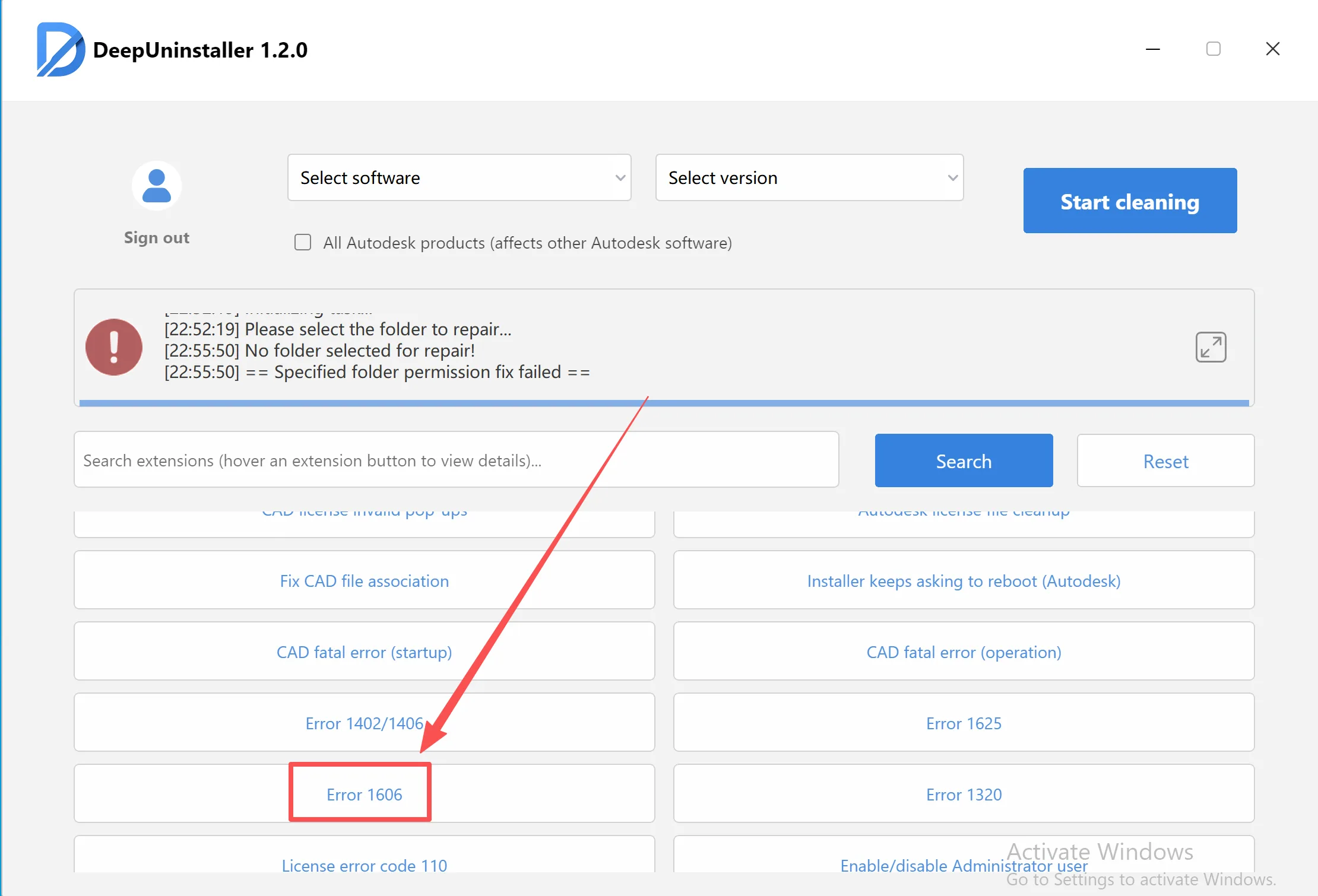
Solution 2: Recreate the missing drive letter
This solution involves creating a new simple volume for the drive letter mentioned in the error message (e.g., E:\).
- Right-click This PC (or My Computer) and select Manage.
- In the Computer Management window, navigate to Disk Management under the Storage section.Image Placeholder
- In Disk Management, identify a drive (disk) that has ample free space. Right-click this drive and select Shrink Volume.Image Placeholder
- In the Shrink dialog, specify a small amount of space to shrink (e.g., a few hundred MB, such as 500 MB). This action will create an unallocated space on the selected drive.Image Placeholder
- Right-click the newly created Unallocated space and select New Simple Volume.Image Placeholder
- Follow the New Simple Volume Wizard:
- Click Next.
- Specify the volume size (you can typically use the default maximum allowed). Click Next.
- Crucially, Assign the missing drive letter (the one specified in the error message, for example,
E:) to this new volume. Click Next. - Choose a file system (NTFS is common) and set a volume label if desired. Click Next.
- Click Finish to complete the wizard.Image Placeholder
- Once the new simple volume is created and the missing drive letter is assigned, attempt to restart the Autodesk product installation.
By diligently following these steps, you should be able to resolve Error 1327: Invalid Drive during your Autodesk product installation. Ensure all instructions are followed accurately before reattempting the installation.
Leave a Reply