 Arabic
  English
  Chinese
  Japanese
  Hindi
Hindi  Spanish
  French
  Bengali
  Russian
  Portuguese
  Indonesian
  Korean
  German
 Issue:
When installing CAD 2023 or other Autodesk software, you encounter Error 4000.
الحل
Follow the methods below to resolve installation Error 4000.
Method 1: Clear Temporary Files (Lower Success Rate)
- Press the
Win + Rkeys to open the Run dialog. - Type
"%temp%"(without quotes) and pressEnter. - In the opened temporary folder window, press
Ctrl + Ato select all files. - Delete all selected files to clear the temporary cache directory.
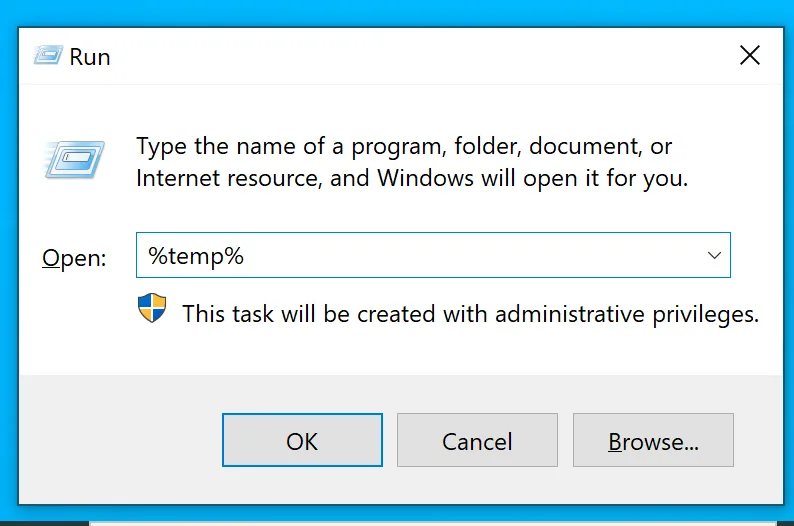
- Attempt to reinstall CAD 2023.
Method 2: Advanced Cleanup and Reinstallation (Higher Success Rate)
- Download the
برنامج التثبيت العميقtool. Open its extensions and click on the “Error 1625” option.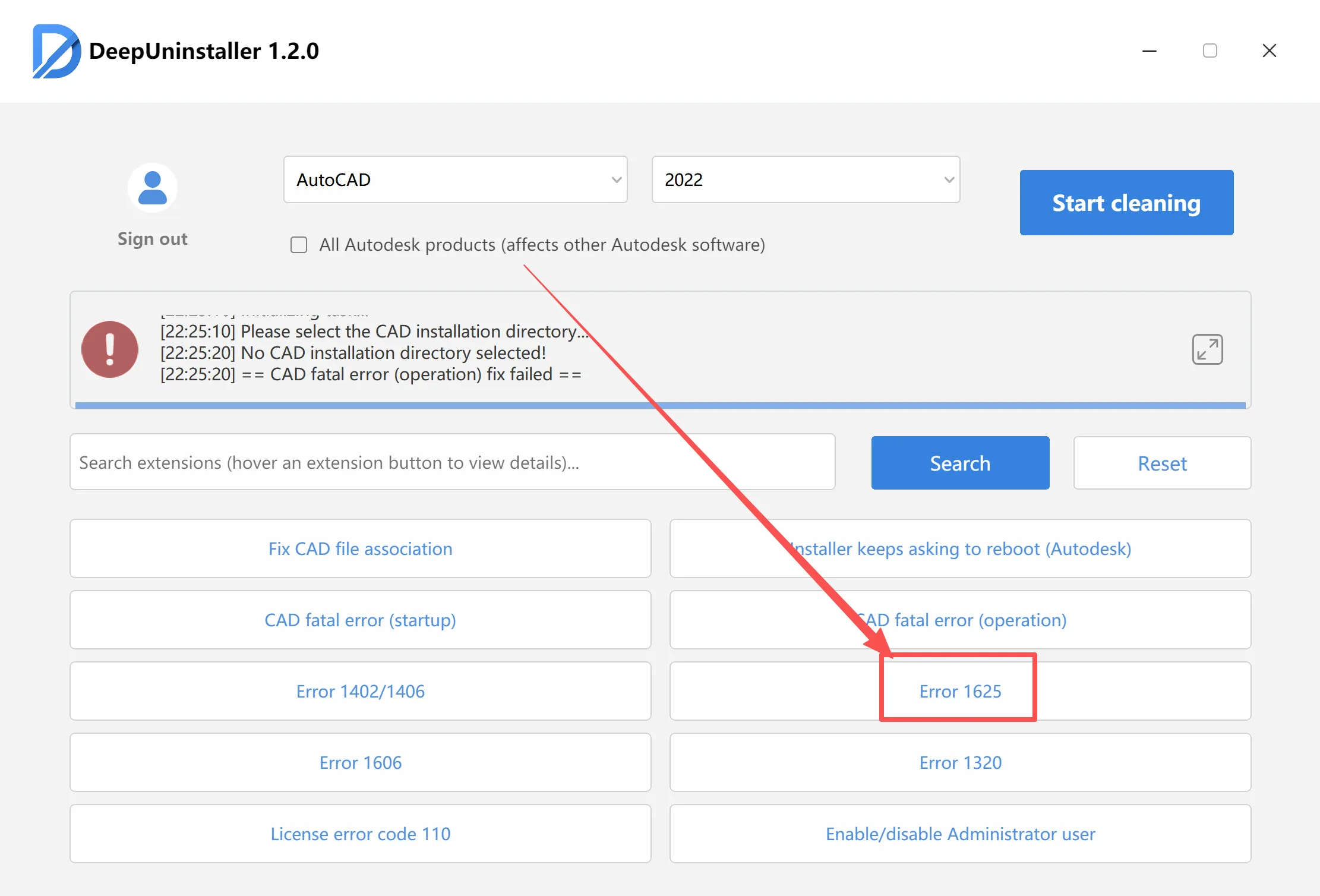
- If the previous uninstallation was incomplete, use
برنامج التثبيت العميقto perform a thorough cleanup and uninstallation. After cleaning, remember to restart your computer or manually start the Autodesk services. - Attempt to reinstall the software. If Error 4000 still occurs:
- In the
برنامج التثبيت العميقextensions, click on “Install VC++ runtime” and follow the instructions provided. - After completing the C++ installation, click on “Run with system privileges” in the
برنامج التثبيت العميقextensions to proceed with the installation.
- In the
ترك التعليق